Saturday, July 8, 2017

On the fly Metadata creation, and advanced data validations with Groovy

Yes, I'm still writing about Groovy, if you are starting to feel bored about it then you are probably still not aware how powerful and revolutionary this recent addition is, it is not a "nice to have" feature, it's a lot more than that! I don't know how I wrote this post, I woke up at 5 AM and couldn't sleep so  thought I should utilize my weekend in a proper way! I'm also running a 10 k race tomorrow, so my apologies in advance for the typos, please ignore and focus on the content. 😉

Oracle was kind enough to give few use cases for Groovy in their library, but the issue is without having media attached to them (pictures and videos) it may be a bit difficult to fully grasp the beauty, power and awesomeness behind the lines and visualize it, so I put up a small demo to share with you.

I built this demo largely borrowing the logic of the following API examples, with my own additions and changes:

1. Multi line script to demonstrate creation of metadata and data with validations
2. Multi line script to demonstrate advanced data validations


This demo will show:

Creation of Metadata on the spot
Run time prompt validations
Data form validations
💥Cross cube validations💥

I will show the demo first, and later share the technical part with more details.

The example is about defining product definitions (min max quantity, discounts and prices..) and taking new orders based on those products, so without further ado, I have a "Product Order" cluster with two cards (Define Assumptions which is a data form pointing to one cube, and Add Order is another data form pointing to another cube).


I will start by defining my assumptions, as shown below I have one row (Product_1) with Min Quantity, Max Quantity, Max Discount, Standard Price and Price Adjustment Percentage values. In a nutshell for Product_1 orders must be minimum 100 and maximum 200 with a standard price of 1200 and discount available is  10%


This form is showing all available products (Children of Total_Product)


I also have a menu attached to the form "Add New Product", so let me go ahead and add a new product, I have to provide the parameters (quantity, discount and price) and in this instance I did not specify any validation, I did not even ask for the Product code/name for the new member which I will show later.


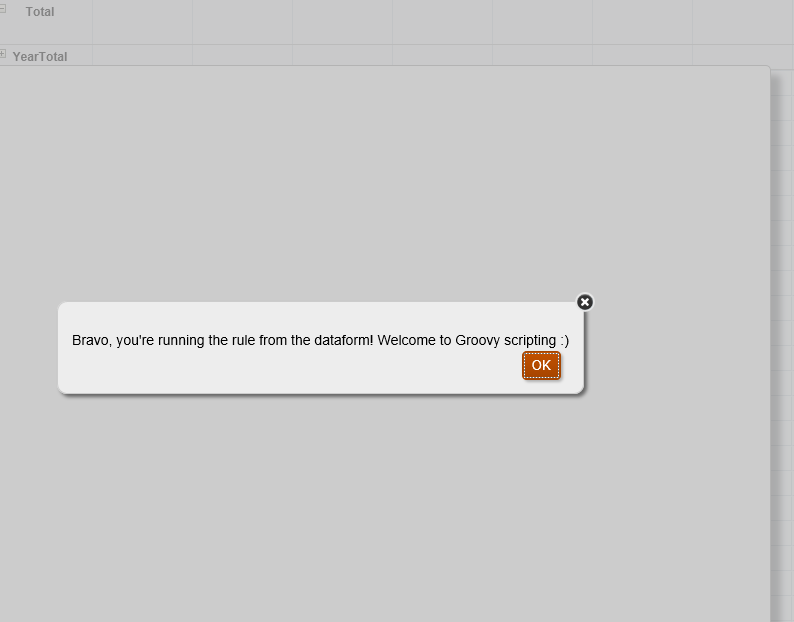
So after launching the rule, a new product member is added with the given assumptions.
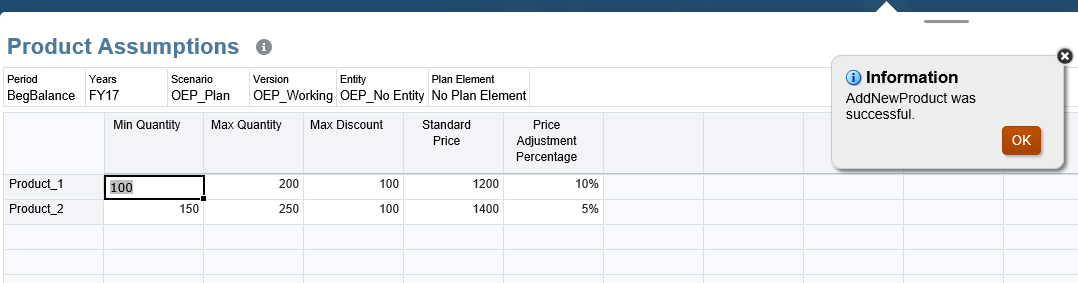

I'll go ahead and add one more product, and enter the assumptions for the three products as shown below.


And you can see from the dimension outline the new members are added. (By default they took the prefix Product_ )


Now I'm done (for now) with defining the assumptions, I will go to "Add Order" and create a new order.


My Product Order form which is pointing to a separate cube, and I'm using a hierarchy driven smart list to assign the Product for every order. (I'm not going to explain the hierarchy driven smart list bit so if you're not familiar with it then I suggest you read Celvin's post , if you're from TM1 or IBM Planning Analytics background it's similar to pick lists which I wrote about here )

In this form I have a couple of validations:

1. Quantity must be within the Product Min-Max range defined in the Assumptions form (which happens to be in a separate cube)
2. Price must not be lower than the standard price plus the adjustment percentage defined for that product
3. Customer Code must start with E followed by five digits, for example E12345
4. Email Contact must be a proper email format


If you click on Product. cell you'll get the hierarchy driven smart list drop down:


Now,  will enter the order details as shown below, I entered a wrong customer code and invalid email id:


What happens when I save? Nothing gets saved, because of the validations


The validation error messages


I will change the values to the proper format and save again.


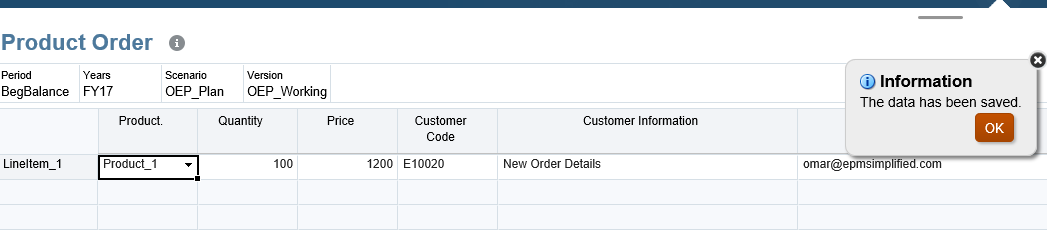
So far so good, OK I'll add a new line for a new order (I have a menu attached to the from to add new lines), I also have the same validations for customer code and email address at the run-time prompt level which will stop the rule from running if the prompt values are invalid:

I gave a wrong customer code format and tried to launch the rule


Rule did not launch, I need to enter the correct customer code format and then launch again to add the new line as shown below, I also did not specify the name or number of the item. 


In the old days of Essbase and Planning we used to create generic members (Line 1 to 100) and create a rule to loop the 100 lines and create a block for the next available member, this example however is fundamentally different because I'm adding a new member all together as shown in my dimension outline.


So now back to my new item, I will assign a product number of the order, specify the quantity and price, if you remember my Product 2 assumptions I had a minimum order of 150 defined with discount percentage set at 5%) so what happens if I save the form? I'll get a validation error telling me exactly what went wrong (In this case I entered 10 where I'm allowed to enter a range of 150 to 250)  as shown below.


This is how awesome and extremely powerful (if not mighty) Groovy is, in one cube I'm validating the order details data entered against product assumptions from a separate cube, the assumptions are entered at Product dimension level, and the order details data I'm validating is entered in the Account dimension linked by a hierarchy driven smart list.

Back to the example now, I'll change the quantity to fit within min-max range and save the form.


I'm done with the second order, I will go add a new order for Product 3 with 250 items at the price of 900, this is way below the allowed discount but I'm giving a note (the customer is a friend of my girlfriend and I'm trying to give him a deal).


Unfortunately, the order can't be saved because the price is lower than 1350 (Product 3 has standard price of 1500 and 10% discount)

This means I can't give that price and I need to change it.
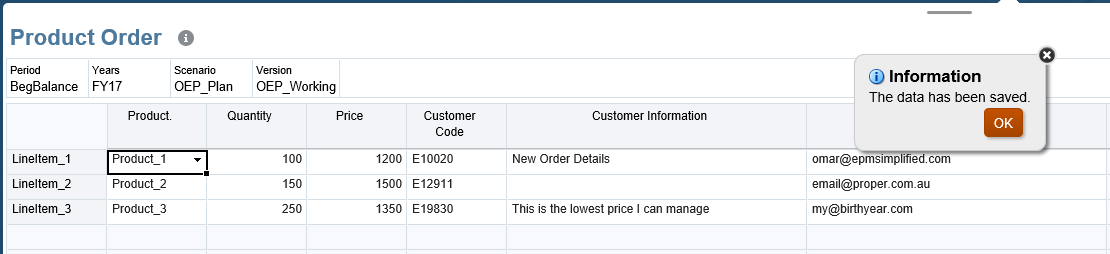


What happens if I change the product for a saved order and it happens to be invalid for the new product? let's try this, first I'll add another Product (Product_4) and define the assumptions.


I will change the order details of my first order Product 4 and save.


I got two validation messages telling me exactly what the problem is and the allowed value/range , one for the quantity and another for the price as per the assumptions defined for Product 4.
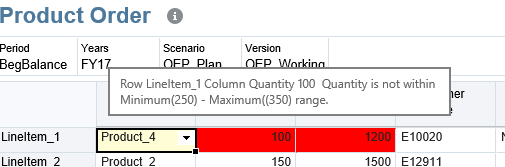


So I'm left with no option but to change the order details and save the form again.
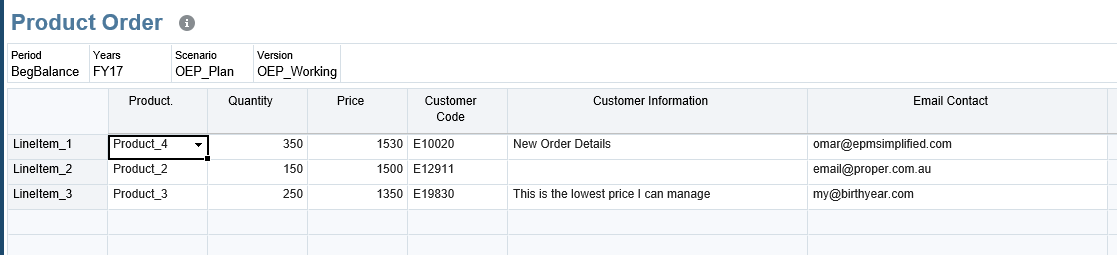


And life goes on from now on 😉


Groovy scripts and other artifacts:


Add New Product:


 1
 2
 3
 4
 5
 6
 7
 8
 9
10
11
12
13
14
15
16
17
18
19
/*RTPS: {MinQty} {MaxQty}  {Discount} {StdPrice} {PriceAdjPercentage} {Scenario} {Year} {Version}*/
def rowDimensions = operation.grid.rows.headers.essbaseMbrName
int nextProductCounter = rowDimensions.size() + 1
String nextProduct = "Product_$nextProductCounter"
Dimension productDim = operation.application.getDimension("Product")
Member parentProduct = productDim.getMember("Total_Product")
Map newProduct = parentProduct.newChildAsMap(nextProduct)
// Save the new Product
Member product = productDim.saveMember(newProduct, DynamicChildStrategy.ALWAYS_DYNAMIC)
// Generate the calc script to save product average price
"""Set CreateNonMissingBlk On;
Fix(${fixValues(rtps.Year, rtps.Scenario, rtps.Version, product)}, "BegBalance","No Plan Element")
"OEP_No Entity"(
                "Min Quantity" = $rtps.MinQty;
         "Max Quantity" = $rtps.MaxQty;
         "Max Discount" = $rtps.Discount;
         "Standard Price" = $rtps.StdPrice;
         "Price Adjustment Percentage" = $rtps.PriceAdjPercentage;
)EndFix;"""


Validate Order Details:


 1
 2
 3
 4
 5
 6
 7
 8
 9
10
11
12
13
14
15
16
17
18
19
20
21
22
23
24
25
26
27
28
29
30
31
32
33
34
35
36
37
38
39
40
41
42
43
44
45
46
47
48
49
50
51
52
53
54
55
56
57
58
59
60
61
62
63
64
65
66
67
68
69
70
71
72
73
74
75
76
77
78
79
80
81
82
83
84
85
86
87
88
89
90
class ProductData {
    Integer Product
    DataGrid.DataCell minQty
    DataGrid.DataCell maxQty
    DataGrid.DataCell standardPrice
    DataGrid.DataCell maxDiscount

    public String toString() {
        return "minQty: ${minQty?.formattedValue}, maxQty: ${maxQty?.formattedValue}, standardPrice: ${standardPrice?.formattedValue}, maxDiscount: ${maxDiscount?.formattedValue}"
    }
}

// Create a resource bundle loader containing localized messages needed by this rule.
def mbUs = messageBundle( ["validation.missingmember.product":"No Product found."] )
def mbl = messageBundleLoader(["en" : mbUs]);

//Build DataGrid for Product Assumptions
Cube driverCube = operation.application.getCube("OEP_FS")

DataGridDefinitionBuilder builder = driverCube.dataGridDefinitionBuilder()
builder.addPov(['Years', 'Scenario', 'Period', 'Version', 'Entity', 'Plan Element'], [ ['FY17'], ['OEP_Plan'], ['BegBalance'], ['OEP_Working'], ['OEP_No Entity'], ['No Plan Element'] ])
builder.addColumn(['Account'], [ ['Min Quantity', 'Max Quantity', 'Standard Price' ,'Price Adjustment Percentage'] ])
builder.addRow(['Product'],  [ ['ILvl0Descendants("Total_Product")'] ])

DataGridDefinition gridDefinition = builder.build()

// Load the data grid from the driver cube
DataGrid dataGrid = driverCube.loadGrid(gridDefinition, false)

// Create a map of product data by product name from the data grid.
def productDataMap = new HashMap()

StringBuilder scriptBldr = StringBuilder.newInstance()
if(dataGrid) {
    println("dataGrid is not null")
    GridIterator itr = dataGrid.dataCellIterator('Min Quantity')
    itr.each {
        def productData = new ProductData()
        productData.minQty = it
        productData.maxQty = it.crossDimCell('Max Quantity')
        productData.standardPrice = it.crossDimCell('Standard Price')
        productData.maxDiscount = it.crossDimCell('Price Adjustment Percentage')
        productDataMap[(it.getMemberName('Product'))] = productData
        println(it.getMemberName('Product') + ": " + productData)
    }
}

DataGrid grid = operation.grid

// Construct an iterator that iterates over all data cells containing the Product member.
GridIterator itr = grid.dataCellIterator('Product.')

// Throw a veto exception if the grid has at least one cell but does not contain any cells containing the Product member.
if(!grid.empty && !itr.hasNext()) {
    // Found 0 cells with Product
    throwVetoException(mbl, "validation.missingmember.product");
}

// Validate the values in the grid being saved against the values in productDataMap.
itr.each {
    ProductData productData = productDataMap[it.DataAsSmartListMemberName]
    if(productData == null) {
        println("Unable to locate Product data for: ${it.DataAsSmartListMemberName}, with data value: ${it.formattedValue}" )
    } else {
        DataCell quantity = it.crossDimCell('Quantity')
        if(quantity == null)
        println("Unable to locate quantity")
        else if(quantity.data < productData.minQty.data || quantity.data > productData.maxQty.data) {
            quantity.addValidationError(0xFF0000, "Quantity is not within Minimum($productData.minQty.formattedValue) - Maximum(($productData.maxQty.formattedValue) range.")
        }
        DataCell customerPrice = it.crossDimCell('Price')
        Double discount = ((1 - productData.maxDiscount.data) * productData.standardPrice.data)
        if(customerPrice == null)
        println("Unable to locate discount")
        else if(customerPrice.data < discount) {
            customerPrice.addValidationError(0xFF0000, "Can't go for discount lower than : $discount ")
        }
        DataCell customerCode = it.crossDimCell('Customer Code')
 if (customerCode.formattedValue ==~ /^(?!(E[0-9]\d{4})$).*/){
   customerCode.addValidationError(0xFF0000, "Customer Code must start with capital E followed by five digits (for example E12345)")
  }
 DataCell customerEmail = it.crossDimCell('Email Contact')
 if(customerEmail == null) {
     println("No email") 
  } else if (customerEmail.formattedValue ==~ /^(?!(^[a-zA-Z0-9_.-]+@[a-zA-Z0-9-]+\.[A-Za-z]{2,3}(\.[A-Za-z]{2})?$)).*/){
   customerEmail.addValidationError(0xFF0000, "Enter a valid email address.")
  }
    }
}

I won't explain every line (at least not in this post) but I'll highlight the important bits:

This section creates a data grid for the product assumptions (which we will use to validate the entered data in the form) and loads the data in the grid.


//Build DataGrid for Product Assumptions
Cube driverCube = operation.application.getCube("OEP_FS")

DataGridDefinitionBuilder builder = driverCube.dataGridDefinitionBuilder()
builder.addPov(['Years', 'Scenario', 'Period', 'Version', 'Entity', 'Plan Element'], [ ['FY17'], ['OEP_Plan'], ['BegBalance'], ['OEP_Working'], ['OEP_No Entity'], ['No Plan Element'] ])
builder.addColumn(['Account'], [ ['Min Quantity', 'Max Quantity', 'Standard Price' ,'Price Adjustment Percentage'] ])
builder.addRow(['Product'],  [ ['ILvl0Descendants("Total_Product")'] ])

DataGridDefinition gridDefinition = builder.build()

// Load the data grid from the driver cube
DataGrid dataGrid = driverCube.loadGrid(gridDefinition, false)


After Grid is created and loaded, this iterator will fill the object productData of class ProductData (defined at the beginning) and use it for validations.


if(dataGrid) {
    println("dataGrid is not null")
    GridIterator itr = dataGrid.dataCellIterator('Min Quantity')
    itr.each {
        def productData = new ProductData()
        productData.minQty = it
        productData.maxQty = it.crossDimCell('Max Quantity')
        productData.standardPrice = it.crossDimCell('Standard Price')
        productData.maxDiscount = it.crossDimCell('Price Adjustment Percentage')
        productDataMap[(it.getMemberName('Product'))] = productData
        println(it.getMemberName('Product') + ": " + productData)
    }
}


A sample job console log after running this rule:


Add New Order:


 1
 2
 3
 4
 5
 6
 7
 8
 9
10
11
12
13
14
15
16
17
18
19
20
21
22
23
24
/*RTPS: {CustomerCode} {Email} {Year}  {Scenario} {Version}*/
def mbUs = messageBundle(["validation.invalidcode":"Customer Code is invalid: {0} (Ex Valid Customer Code E12345","validation.invalidemail":"The email format is wrong {0}."])
def mbl = messageBundleLoader(["en" : mbUs]);
def rowDimensions = operation.grid.rows.headers.essbaseMbrName
int nextItem = rowDimensions.size() + 1
String nextLineItem = "LineItem_$nextItem"
//validate rtp values
validateRtp(rtps.CustomerCode, /^E[0-9]\d{4}$/, mbl, "validation.invalidcode", rtps.CustomerCode);
validateRtp(rtps.Email, /^[a-zA-Z0-9_.-]+@[a-zA-Z0-9-]+\.[A-Za-z]{2,3}(\.[A-Za-z]{2})?/, mbl, "validation.invalidemail", rtps.Email);
Dimension customDim = operation.application.getDimension("Entity")
Member parentOrder = customDim.getMember("Total_LI")
Map newLineItem = parentOrder.newChildAsMap(nextLineItem)
// Save the new line item
Member lineItem = customDim.saveMember(newLineItem, DynamicChildStrategy.ALWAYS_DYNAMIC)
// Generate the calc script to save the line item
String script = """Set CreatenonMissingBlk On;
Fix(${fixValues(rtps.Scenario, rtps.Year, rtps.Version, lineItem)},"BegBalance")
"No_Account"(
"Customer Code" = $rtps.CustomerCode;
"Email Contact" = $rtps.Email;
)
EndFix"""
println script
return script.toString()


Product smart list:


Product Assumptions and Product Order Forms (just to show they are built for different cubes):


That is it, this was a lengthy post but I really hope it can help you better understand how we can embed Groovy and use it in our solutions.





Friday, June 30, 2017

Groovy, E/PBCS, and Random() stuff....

My last few posts were talking about EPBCS and the newest (most powerful and exciting) feature added recently to the cloud which is Groovy scripting! My background is computer science and naturally, I was super excited about the latest addition and started instantly writing scripts and playing around with it.

Thanks to Celvin Kattookaran who read the Groovy posts and his valuable feedback, he suggested a simpler way of writing the code, and after we exchanged some comments it turned out I was using an old version of the API and he got me in touch with the Oracle Calculation Manager development team, who were kind enough (Thank you Ujwala Maheshwari!) to call me and give me some updates and insights on the latest Groovy scripting feature, as well as the current API library and some of the examples provided. So I thought I should share some of the points/findings:


Some of the pre-built EPBCS Groovy rules are written using the old API version

This is going to be updated soon (maybe as early as August 2017), Good thing that the API library has a lot of useful examples, to access this library go to Academy Groovy Javadocs and simply enjoy! The documentation provided by Oracle here is superb, very clear, powerful and well-written examples, this must be in your browser's favorites


Groovy is simpler than Java

I come from computer science background, I learned to program first using low-level languages (Assembly) and then moved to high-level languages (Pascal, C, VB and Java), why am I mentioning this? because you're very likely to start scripting in Java and totally forget how awesome and groovy Groovy the language is! So what is wrong with writing code in Java? Nothing, but if you can achieve the same result with fewer lines that look more aesthetic then why not?

I will give a very simple example to highlight the above, consider a script that prints Hello World and the current day, this is the first thing you'll learn how to write in any programming language, I'll write the same in Java and Groovy and see where they are different.

Java


1
2
3
4
5
6
7
8
9
import java.util.Date;
import java.text.*;
public class Main{
    public static void main(String[] args) {
       DateFormat dateFormat = new SimpleDateFormat("EEE, MMM d, yyyyy"); 
       Date date = new Date(); 
       System.out.println("Hello, World! Today is: " + dateFormat.format(date));
    }
}

Output


Groovy


1
2
3
4
import java.text.*
DateFormat dateFormat = new SimpleDateFormat("EEE, MMM d, yyyyy")
Date date = new Date()
println("Hello, World! Today is: " + dateFormat.format(date))

Output


So, what do you think? Groovy certainly looks nicer and more concise, I wanted to add the date bit because I wanted to highlight some differences between Java and Groovy in the given example:

1. In Groovy, java.util package is imported by default, hence the import line is missing from my Groovy script unlike Java where you need to import every package/class you intend to use.

2. In my Groovy script I don't have a class and method declaration like Java, so if you just want to print Hello World you just need


println("Hello World!")

3. To get formatted dates, you need DateFormat and SimpleDateFormat classes, in both Groovy and Java you need to import the classes

4. Another difference is the semi-colons, in Groovy I don't need to end my lines with ";"

For a more detailed list of differences click here


You can write a perfectly functioning Groovy script and then realize it's really a Java script

One of the first scripts I wrote when I was testing Groovy in EPBCS was a data validation script to prevent users from entering negative values, so the first time I wrote the code it was exactly like this:


 1
 2
 3
 4
 5
 6
 7
 8
 9
10
11
12
13
14
15
16
17
18
EPMApplicationShell appshell = new EPMApplicationShell()
DataGrid grid = null;
// exit if rule is executed from Rules launcher
try {
grid = appshell.getCurrentGrid()
} catch(BindingsMissingException) {
return  '''BegBalance (
          @Return("Please run the rule from the dataform"),Error);
       )'''
}
//validate negative value
GridIterator itr = grid.dataCellIterator()
itr.each{ 
DataCell dc = it
if ((dc.isEdited()) && (dc.data <0)) {
dc.addValidationError(0xFF6347,"Cannot enter negative numbers")
}
} 


Lines 1 to 10 are there to make sure the script is launched in a form/grid and not Rules launcher, I borrowed this code from Trend Calculation Groovy rule in PBCS, and apparently this is the alpha version and we no longer need to define appshell variable or write the try catch statement. (leave it for now, I'll come back for it).

Lines 11 to 18 Invokes a Grid Iterator and checks edited data cells, and if negative values are found then throw an error.

Now, the following is the refined code:


1
2
3
4
// Validate negative value 
operation.grid.dataCellIterator{DataCell cell -> cell.edited}.each { DataCell cell -> 
if ((cell.data < 0)) 
cell.addValidationError(0xFF6347, "Cannot enter negative numbers") }

Oracle Calc Manager were kind enough to re-write my code and they explained the redundant bits.

Lines 1 to 10 are no longer needed and is simply replaced with "operation.grid", so when you try to run the rule above from Rules Launcher it will throw an error "grid not found" because of operation.grid.* which assumes there is an active grid, otherwise throw error and break.

Lines 12 to 18 can be replaced by a simple Closure block, coming from Java background the concept is still new to me, but that is what makes Groovy beautiful and easy to use!


Groovy in Action

Want to learn more about Groovy? Check this out, I'm enjoying this book and most importantly it is really fun to read! It is not written in a typical academic computer science text book style, which means it is fun to read, I don't remember ever enjoying reading my text books back at university. (You can get a combo deal at manning publications which includes a pdf, epub, and soft cover paper version)


What kind of subscription you need to have Groovy your POD? PBCS? PBCS + 1 module? or EPBCS?

Thanks to Shankar Viswanathan  Oracle Planning Product Management, I got this point clarified:

Groovy is technically made available for EPBCS App type which is different from saying it is only for EPBCS. There are three SKUs that customers can buy: PBCS; PBCS + 1 module option; EPBCS. If you buy the PBCS +1 module option you can still deploy the application as EPBCS App Type or convert from PBCS App Type to EPBCS App Type. It is just that contractually you can't deploy more than 1 module when you buy PBCS + 1 module. To get Groovy all you need is to have EPBCS App Type. To use groovy you don't even have to deploy any modules once you are in this EPBCS App Type. So technically it is available for PBCS as long as at least the PBCS + 1 module option is bought by the customer. You could be using just the custom cubes in EPBCS App Type and still use Groovy. There is no current plans to make it available for standalone PBCS. Hope this can be clarified in your future posts.


Yes, that is right you can have Groovy with PBCS as long as you go for the plus module option, if you ask me is it worth it? my answer is...


YES         YES       YES      YES


Wednesday, June 21, 2017

Groovy and Data Validation in EPBCS - Quick Tip


This post is about simple data form validations, preventing users form entering negative amounts in certain members, we all familiar with that request, we used to achieve this pre Hyperion Planning 11.2.2 by changing the java script files. Now thanks to EPBCS's Groovy capabilities, it is a piece of cake in the cloud! No need to locate server files or any of the hassle we used to go through, we just write a simple script and that's it!

To keep it simple and lite, I'll stick to my usual approach and use a simple form (minimized version of Product Revenue form in EPBCS's Financials dodel). The same form I used for my previous post.

I'll start with my Groovy script, it's pretty simple and straightforward.


1
2
3
4
// Validate negative value 
operation.grid.dataCellIterator{DataCell cell -> cell.edited}.each { DataCell cell -> 
if ((cell.data < 0)) 
cell.addValidationError(0xFF6347, "Cannot enter negative numbers") }

Layout of my data form:


I have two business rules attached to the form (one business rule and one Groovy script to be precise)


GroovyValidate is my validation script and OnSave is a simple BR that calculates Product Revenue (Volume multiplied by Average Price), and OBVIOUSLY, I'll run both rules after save.


Let me enter some data and confirm it's working:


You can see above I was able to save the negative values which means there is something wrong either with my script or the form. I ruled out the script because it's a simple if condition that is definitely working, so what is wrong exactly? Ok see below the data form execution options for the business rules, we have Before Save and After Save!! Interesting!


By defaults and after a decade working on Hyperion Planning, almost 90% of the cases I had to run the rule on save, and that was my obvious and default choice, well I was wrong! I corrected this and selected Run Before Save


And now I can't enter negative values:


Notice the form did not save and the cell March->Average Selling Price is still in edit mode, so is Volume -> Mar but because I'm highlighting the cell you can't tell. And If I hover the mouse over the highlighted cell I can see the tool-tip.


All I have to do now is simply change the negative value and I can proceed with my work.


What happens if I enter data in all cells will it work and randomly enter negative values here and there?


The answer is yes, it works just fine!


Remove the negative values and that's it!


Voila!

Another reason to...💕 EPBCS 

Update

Celvin Kattookaran was kind enough to highlight I was using an alpha version of the API library, and he hooked me up with the Oracle Dev team responsible for Calculation Manager/Groovy, I had a call with Ujwala Maheshwari from Oracle and she was kind enough to go through my code and highlight the changes, and recommended another and better way to write the same code which I will elaborate in future posts. If you look again at the code in this post you'll notice some changes from the initial version (the changes and recommendations will be explained in a separate post in the very near future)

Clarification:

I got a comment from an anonymous  user in the previous post, presumably from Oracle, so I'm going to quote it, it clarifies an assumption I made earlier that Groovy is only available for EPBCS, which is not the case...

Quote Start

A point of clarification: Groovy is technically made available for EPBCS App type which is different from saying it is only for EPBCS. There are three SKUs that customers can buy: PBCS; PBCS + 1 module option; EPBCS. If you buy the PBCS +1 module option you can still deploy the application as EPBCS App Type or convert from PBCS App Type to EPBCS App Type. It is just that contractually you can't deploy more than 1 module when you buy PBCS + 1 module. To get Groovy all you need is to have EPBCS App Type. To use groovy you don't even have to deploy any modules once you are in this EPBCS App Type. So technically it is available for PBCS as long as at least the PBCS + 1 module option is bought by the customer. You could be using just the custom cubes in EPBCS App Type and still use Groovy. There is no current plans to make it available for standalone PBCS. Hope this can be clarified in your future posts

End Quote


Monday, June 12, 2017

On the fly Calculation Scripts in EPBCS with Groovy!

So the most exciting thing recently (at least for me) was the introduction of Groovy scripting for EPBCS. I wrote an introductory post here and another LinkedIn article Along Came Groovy that shows how powerful this thing could be.

In this post I want to show how powerful Groovy scripting can be, and how can we ON THE FLY perform focused calculations on a specific data combination that is not possible with normal calculation scripts. The example given below is quite simple and straightforward, in more complex scenarios you need to take into considerations a couple of things when it comes to Groovy, most importantly it is Groovy/Java after all and not Essbase calculation script! you don't want to write a script that takes ages to execute. The concept of block/cell calculation mode is not really applicable here.

I will start with my Product Revenue data form, a simple form that allow users to enter product volume and average selling price. and calculates product revenue based on the entered assumptions (Volume * Avg price).


I also have a business rule (Groovy rule) attached to the form to run after save. Typically a business rule will simply perform the calculation (Volume * Price) for all cells regardless if data was changed or not, so in this case I want to show how to perform the calculation (in this instance Volume * Price) based on dirty cells (cells that has been changed by the user). I entered some data in the form prior to attaching the business rule because I want to show how the rule will only calculate the revenue for changed cells.

Ok, let's start with the interesting stuff; my full Groovy script which is pretty much tailor scripted to the data form I'm testing with, but it should be enough to demonstrate what is this post is all about.


 1
 2
 3
 4
 5
 6
 7
 8
 9
10
11
12
13
14
15
16
17
18
19
20
21
22
23
// iterate over edited cells
def uniquePeriodNames = operation.grid.dataCellIterator{DataCell cell -> cell.edited}.collect([] as Set,{ DataCell cell ->
    cell.getPeriodName(MemberNameType.ESSBASE_NAME)
})

if (uniquePeriodNames.size() == 0){
println("No cells were edited")
}
else{
List<String> fixMemberNames = operation.grid.pov*.essbaseMbrName
List<String> editedPeriods = uniquePeriodNames
String calcScript = """ 
Fix("${fixMemberNames.join('", "')}")
Fix("${editedPeriods.join('", "')}")
"OFS_Calculated"
(
"OFS_Product Revenue" = "OFS_Volume" * "OFS_Avg Selling Price";
)
EndFix;
EndFix;"""
println("The following calculation script was executed by: " + operation.user.fullName + "\n" + calcScript)
return calcScript.toString()
}

I'll briefly describe what the script is doing for those of you who are not familiar with programming.

Iterate grid and get edited Periods.


// iterate over edited cells
def uniquePeriodNames = operation.grid.dataCellIterator{DataCell cell -> cell.edited}.collect([] as Set,{ DataCell cell ->
    cell.getPeriodName(MemberNameType.ESSBASE_NAME)
})

Performing the calculation for the selected POV and edited cells, if the user did not enter any data then nothing will happen.


if (uniquePeriodNames.size() == 0){
println("No cells were edited")
}
else{
List<String> fixMemberNames = operation.grid.pov*.essbaseMbrName
List<String> editedPeriods = uniquePeriodNames
String calcScript = """ 
Fix("${fixMemberNames.join('", "')}")
Fix("${editedPeriods.join('", "')}")
"OFS_Calculated"
(
"OFS_Product Revenue" = "OFS_Volume" * "OFS_Avg Selling Price";
)
EndFix;
EndFix;"""
println("The following calculation script was executed by: " + operation.user.fullName + "\n" + calcScript)
return calcScript.toString()
}


Now, let us get back to the data form, I'll save the form without entering data.


As you can see above, it looks like the business rule was run after save "Rule was run successfully", but in my script I instructed the rule not to do anything if there are no changes, and here is the job console to show that is exactly what happened.


So now we know the rule will only work if only there is a change in the data, so I'll change the Volume value in "Jan" and save.


And the job console:


Taata! that's on the fly calculation scripts in EPBCS, the first fix will contain the POV combination, and the next fix will contain the edited periods.

Now, I will change the values of four more periods and confirm the rule will work with more than one edited period.


The job console:


The calculation script is dynamic and changing based on the changes in the data form. Ok so what happens if I enter data in "Average Selling Price" account instead of "Volume".


You can see the Product Revenue Account is getting calculated for "Jun" to "Dec", that's mainly because in my Groovy script I'm iterating through the available data cells without specifying any member (for more complex cases you can iterate a specific member's data cells in the grid), and here is the script that got executed from the job console in case you're interested


Finally, just to confirm the POV selections are getting selected properly, I'll change the year POV selection from FY16 to FY17 and enter data in all periods


And finally the job console to show the calculation script,,,


Voila! that's it, I know the example given here is quite simple, but it should be enough to give you a taste of Groovy & EPBCS (in the near future, I hope PBCS). And you can see how powerful this stuff can really be! It is simply AWESOME! and frankly, I'm happy to say...


Update:

Celvin Kattookaran was kind enough to highlight I was using an alpha version of the API library, and he hooked me up with the Oracle Dev team responsible for Calculation Manager/Groovy, I had a call with Ujwala Maheshwari from Oracle and she was kind enough to go through my code and highlight the changes, and recommended another and better way to write the same code which I will elaborate in future posts. If you look again at the code in this post you'll notice some changes from the initial version (the changes and recommendations will be explained in a separate post in the very near future)


I 💓 EPBCS

Sunday, June 4, 2017

Oracle Planning & Budgeting Cloud June 2017 Update! Groovy Scripting!

It's been a while since I last wrote, I've been doing a rigorous  running program for the past couple of months in order to prepare for an ultra-marathon, and as a result I end up very tired after finishing work and my daily run! I'll try and get back to writing more frequently!

I've been waiting (like so many of you) for the latest PBCS/EPBCS June release on Test environments to play around with the latest features! Oracle published the list of updates here June 2017 Release,,, for me the thing that caught my attention is the introduction of Groovy scripting in Calculation Manager, the first one to write and elaborate on that was Celvin.

So today I finally got to play around with the feature and did write a very simple "Hello World" kind of script just to test and it was really fun!

So now you can go "Rules" under "Create and Manage", create a new script, switch to Script mode, on the right side next to Jump to line you have Script Type as shown below.


Now, I copied one of EPBCS's pre-built Groovy scripts and changed it to simply return an error message to indicate whether the rule was executed from the "Rules" launcher or the "Dataform" business rules launcher. Here is the script


The script is very simple, it will first check if there is a data grid from which this script is triggered and return a simple message. In order to execute a set of commands you need to use Groovy return function either in the simple way shown above, or by using a StringBuilder. I have yet to look at the Groovy documentation that should be part of the new release, it should describe in details the available functions and methods etc.

So now, I'll go and run the rule from "Rules" launcher


I'll get the following message...(The same concept is already applied in some of the pre-built EPBCS rules)


And If I run the rule from a dataform (any dataform)...


I'll get..


So it's officially here, Groovy scripting in the cloud! It's been there for a while for on-premise Planning, so it's really exciting to have it in the cloud.

Now we have a glimpse of the future of scripting, exciting times ahead :)


Monday, April 10, 2017

PBCS 17.04 update - changing FR server values

I promise this will be a very quick post, I was looking forward to see the latest PBCS 17.04 release specifically QUOTE CHANGING FINANCIAL REPORTING SERVER VALUES IN FINANCIAL REPORTING WEB STUDI ENDQUOTE , now in the latest release you can edit and change some  server side preferences from the Reporting Web Studio.

Prior to 17.04 release this is how preferences menu look like from the web studio.


Now after 17.04 release, there is another tab..


Mbean is where you change FR server preferences that will impact all of your FR reports. In this release Oracle just brought three preferences out of more than 60 FR preferences available on premise. And they are...


You can find all about them here, now I'll quickly show how MissingValuesAreZeroInFormulas preference work (which I think is important especially if you use complex formulas in your FR report). So the default setting is false as shown above, and here is a simple report with two data rows (with and without data) and some straight forward formulas.


As you can see, the formulas for addition and subtraction are working just fine, but the multiplication is returning error instead of zero assuming #missing equals zero (which is how a lot of consultants perceive them.

Now if you change the setting directly form the Web Studio client (Reporting Web Studio-> File -> Preferences) and set it to true.


And the report is looking like this....


Instead of #ERROR now we have #ZERO, which makes a huge difference in some cases! and that's about it, you can easily change the values and the no need to logout or refresh the POD or anything.


May the Cosmos be with you!


Saturday, April 1, 2017

Alternative Hierarchies; My article in ODTUG's Newsletter

It has been a while since my last post, hopefully in the coming weeks I'll be writing some interesting stuff, meanwhile you can read my article in ODTUG's EPM Newsletter about Alternative Hierarchies.