Showing posts with label EPBCS. Show all posts

Wednesday, August 3, 2022

Quick tip - Groovy rule validates successfully but fails to run

 This is a quick post about accessing Calc Manager rules properties using groovy class Rule.


I have the following script that validates just fine.


But if I try to run the rule I get the following error message:


The issue is caused by the rule not being deployed to the Planning tables:


The solution is simple. Deploy the run the rule again!


Saturday, September 26, 2020

Dashboards 2.0 - Geomaps


This is my first blog post in a while and it’s mainly due to 2020 being one challenging year on a personal level! Apart from the COVID-19 situation the world is facing, I broke my right foot back in February and I had to go under the knife in March, and consequently, I was sidelined for three months and forced to use crutches and wear a boot. So, you can imagine blogging was not on top of my list of priorities.

This post is about the Geomaps that was newly introduced in Dashboard 2.0, I was interested to see how the metadata/location tagging side of things would work in a Planning application and thanks to Oracle, the new feature did not disappoint.

I will be using the Vision application for my demo and I will start with the hierarchy, I used Entity dimension (you can use any dimension which I’m going to show at the end) to create a countries rollup so I can simply enter some data and see if the dashboard would work.

To understand how do you need to build the metadata for Geomaps to work, there is a file to download which Oracle has provided with the full list of countries. You need to use the names exactly as they are shown in the file for Geomaps to work. You don’t need to create the full list or follow the hierarchy provided in the file, you just need to make sure you have a member name or an alias that matches the country name in the file.

To download the file, create a new dashboard 2.0:


Select any data form and drag it to the canvas, change the view to Geomap and go to chart type properties to download the file.


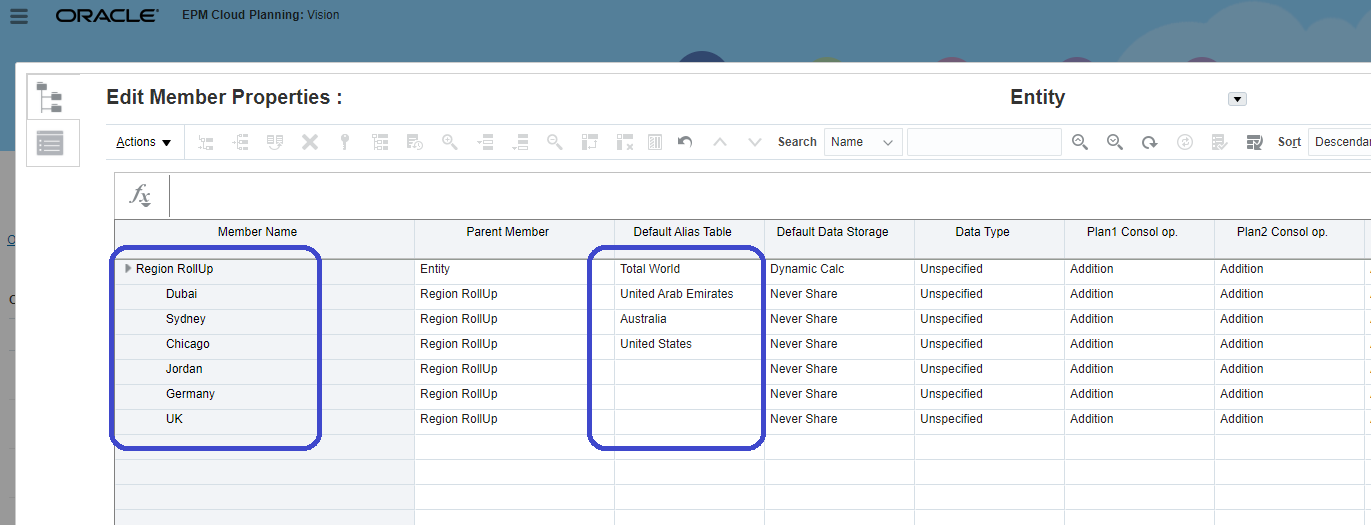
So, based on the file I’m going to create a new rollup in the Entity dimension (you can use any dimension and I’m going to show that at the end) and notice that I’m creating a mix of cities and countries as members and assigning the country name to the city members to see if this would work! Here is the rollup:


Next thing, I will enter some dummy data so I can use the form in the dashboard.


The last step is to create a dashboard 2.0, select the data form, and change the chart type to Geomaps.

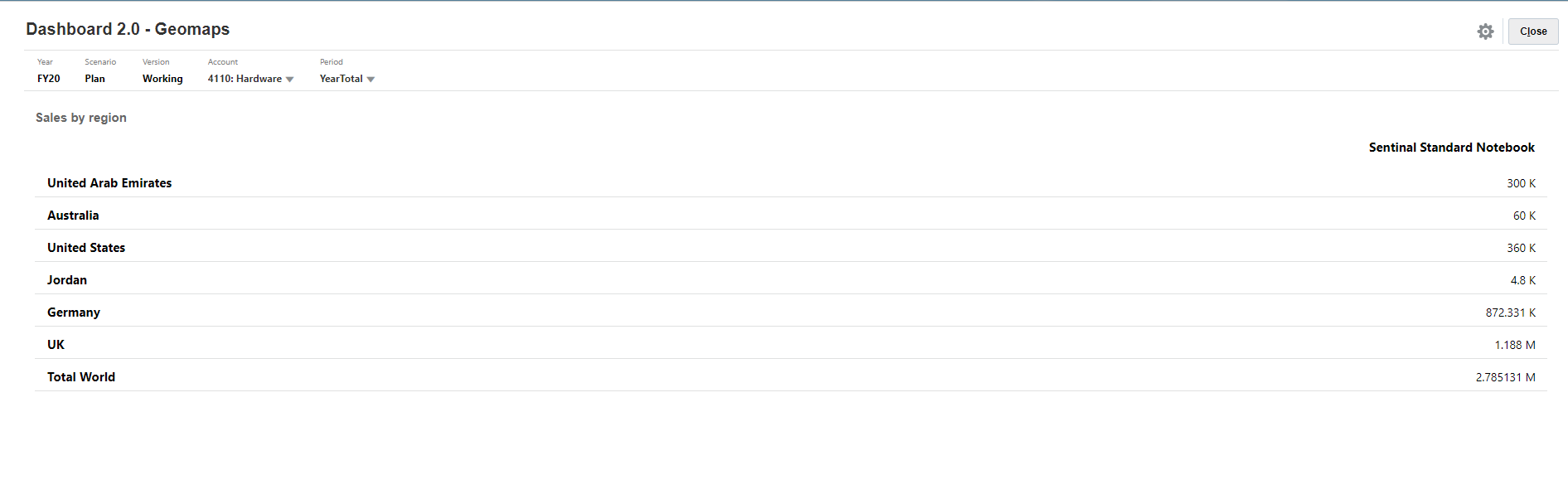
Here is the dashboard in tabular format and you can see the data is showing for all countries.


I will change the chart type to Geomaps and see the result

And yes, it is working except for the UK numbers and that is because the member name is “UK”, not “United Kingdom” as specified in the original file. 


So, to fix this I will simply add an alias to the member.


I will refresh the dashboard and now I can see the UK numbers.


That is it, it is straight forward and very simple to set up. Thanks, Oracle!

Before I wrap it up, I want to show that you can use any dimension, and not just Entity, to store your countries metadata. So, I created another rollup in the Channel dimension as follows:


And a simple data form to store the data (notice the No Entity member selection).


Finally, here is the dashboard based on the Channel rollup.


As demonstrated, the new geomaps chart type is pretty powerful and relatively simple to set up, and most importantly, we don’t need to have any major changes in the application to get it to work.


Monday, May 6, 2019

Artifact Labels - EPBCS Quick Tip

Artifacts Labels is a very powerful and useful feature in PBCS/EPBCS and a lot of folks simply ignore it because they usually work on implementation with one functional language (typically English) and hence no need for labels etc. A typical use case is when you have users in different geographical locations (for example:Australia and Japan) so you need to add Japanese labels alongside the English ones to give the users in Japan an option to view the application in the local language.

But there is also another use case for labels when you have objects(forms, rules etc) with technical prefixes and administrative jargon that do not make any sense to the normal user, so you can use Artifact Labels to give it a meaningful name and that's what I'm going to write about in this blog.

Before we start I'll give you some background, Artifact Labels for Hyperion Planning on-premise folks is the equivalent of  HspCustomMsgs files. Back in on-premise days, we used to generate the custom HspCustomMsgs property files and define the labels using ASCII text as shown below.


Luckily, in the cloud it is much easier and we don't have to access the Planning server, add the files, restart the server...😊

So let's get on with it, here is a list of data forms I want to re-label.


I'll go to Tools -> Artifact Labels and filter for "Form" objects. Notice the default label is grayed out and you cannot edit it. 


I'll add a language "English".


I'll add the labels next to the forms I want to change (objects without English label will display the default label)


Save


Back to the Data card again and now we can see the labeled forms, this looks much better and neater if you ask me! 


Friday, May 3, 2019

Enterprise Performance Reporting Tips - Drill to Content

It's been a while since I last wrote a blog, I've had a couple of drafts that needed my attention but thanks to a busy schedule at work and my Ultra Trail Australia 100 training (I'm running it in two weeks) I had to put it on hold. Good thing I'm now tapering and I no longer have to run crazy long runs in the weekends.

Back to the post, I don't know if you've been using Enterprise Performance Reporting's Management Reporting lately, but if you're not then it's time to consider the tool! I will not go in details and describe the pros and cons of the tool compared to Web Reporting Studio, I will only say it has great potential and it's looking great already.

One of the best things about EPRCS is connectivity to different sources of data,  so you can create a data connection to build a report from:

1. Financials Cloud GL
2. EPBCS
3. FCCS
4. PCMCS

And this also means you can combine different grids/data sources in the same report and that's pretty awesome.

In this post, I'm going to write about the Drill to Content feature which can be useful if you have multiple environments and you want to drill back to the source environment from EPRCS.

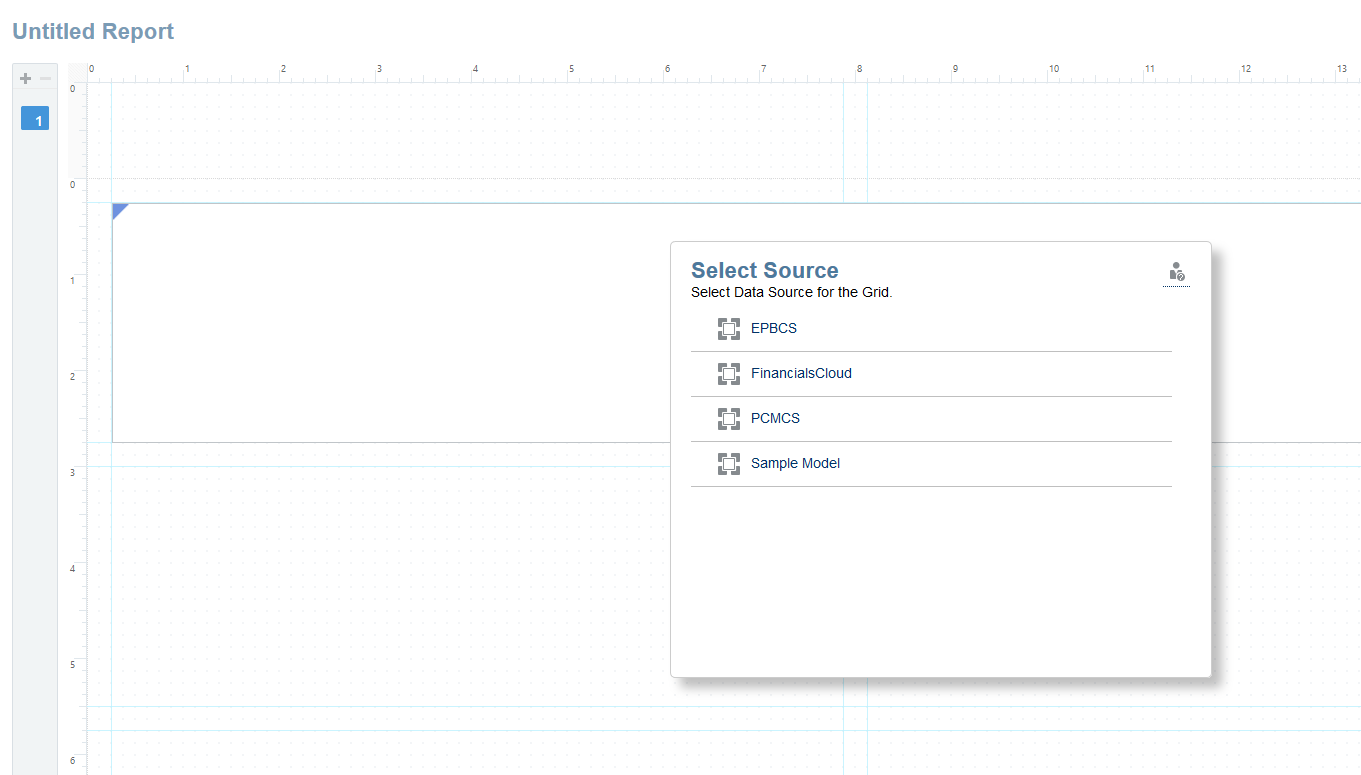
Let's get on with it, here is a list of my data sources.


I'll create a very simple report using EPBCS as a data source.


I'll edit the grid in the report and click on the cell I want the Drill to Content link to appear on, go to "Drill to Content" and add the connection details.


After saving the report you will notice the Drill to Content indicator on the cell.


Click on it and you're taken back to EPBCS.


Very simple and handy at the same time.

Hope this helps.


Friday, July 27, 2018

E-PBCS Tricks - Navigation Flows

We all love Navigation Flows,,don't we? Sometimes we have to deal with a number of Navigation Flows per user role (Planners,,,Super Users,,etc) and if you don't take a sound design approach you may end up with a lot of repetitive and manual work to maintain them.

In this post I'll show a simple and efficient way to handle multiple Navigation Flows and Data Forms. I'll start with my data forms. I have three data forms I want to group in a Card for ease of access.


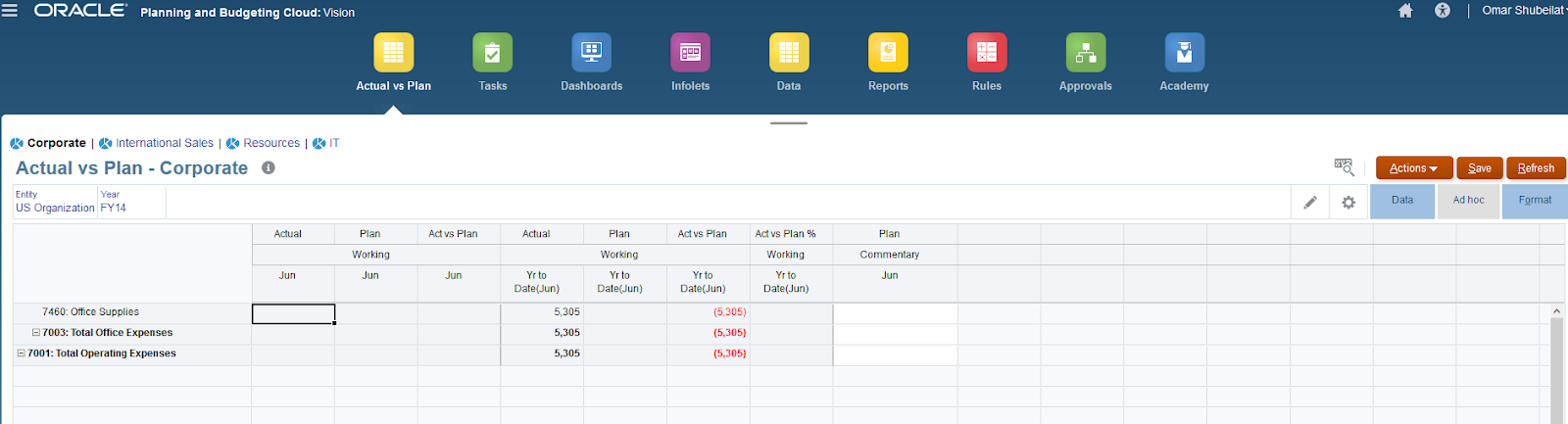
This Card is going to be visible to both Planners and Super users. It's a simple Card as shown here.


I'm going to create a Global Navigation Flow which will act as my source Navigation Flow. I've created the card "Actual vs Plan" in Global, as you can see it's "Inactive" but that is not going to be a problem.


I also have the two main Navigation Flows (Planners and Super Users) and both are having the card "Actual vs Plan" Card as a local Existing object referencing Global Navigation Flow.


So, If I switch to a "Super User" Navigation Flow I'll get to see the card.


Same applies to "Planners" Navigation Flow.


So far so good,, it's straight forward and simple. Here comes the beautiful part, what if you have a lot of changes to the Card (re-ordering forms, adding new forms  etc)... good thing is that you don't need to go to every Navigation Flow and update the Card, you just update the master Card in "Global" and updates will be rolled-out to the flows.

So if we want to add a new tab/form "IT", simply go to "Global" Navigation Flow and update the Card.


We just need to "Reload Navigation Flow" and that's it.


Users can see the new tab.


Voila, that's it!

In this example I just showed a Card with three forms and two Navigation Flows, in reality you might have a lot more than that, so this is certainty a great way to manage your Navigation Flows.


Thursday, March 1, 2018

Metadata tricks using Groovy in EPBCS


I have been very busy the past couple of months. New job, new projects, frequent travelling, and a lot of running in preparation for my next race in TWO weeks in Katoomba in the Blue Mountains. I'm running Six Foot Track, Australia's most famous trail run and one of the toughest, a 45km trail run with 1600 meter of elevation change. Wish me luck!

This post is about using Groovy in metadata management in EPBCS. In my example I will be showing a very simple model built for a Project Planning application that mainly involves:

  1. Approving New Projects
  2. Automatically assigning Project Codes to the approved projects based on the existing sequence
  3. Assign and move the Approved Project to another hierarchy hierarchy (Construction, IT, Business, Service..)

Let me start by showing my Project dimension outline.


So I have four Porject categories:

  1. Construction
  2. IT
  3. Business
  4. Services

Approved Projects are prefixed with P_ and have four digits number. Moving on to "Project Approvals" card where I will be handling the New and Approved Projects.


Vertically tabbed card showing New and Approved projects .The form shows all of the New Project requests that needs to be approved or rejected sitting in the first tab. At this stage I'm simply capturing the description and the total Budget for the sake of simplicity. Notice the information is captured at "No Entity" intersection.


In the second tab I have the Approved Projects with more information like Status, Approver, Comments. I'm also intersecting the Approved Projects with the relevant Entity (Will come back to this when I talk about the business rule).


So now I want to approve "New_Project_006" and see what happens. I have attached my main business rule to a Menu and I'll simply right-click on the Project and launch the "Approve" rule.


I have three rtps to enter:

  1.  Comments (with simple validation to make sure there are at least n number of characters entered)
  2. Parent Project to move the newly approved project under
  3. Department (Entity) to select the relevant department for the approved project


I'm restricting the Parent rtp to the children of "Total Approved" as shown below.


I'm also selecting a department from a hierarchy-driven SmartList.


If you want to learn more about hierarchy driven SmartList you must read Celvin's posts, and Pete's post.


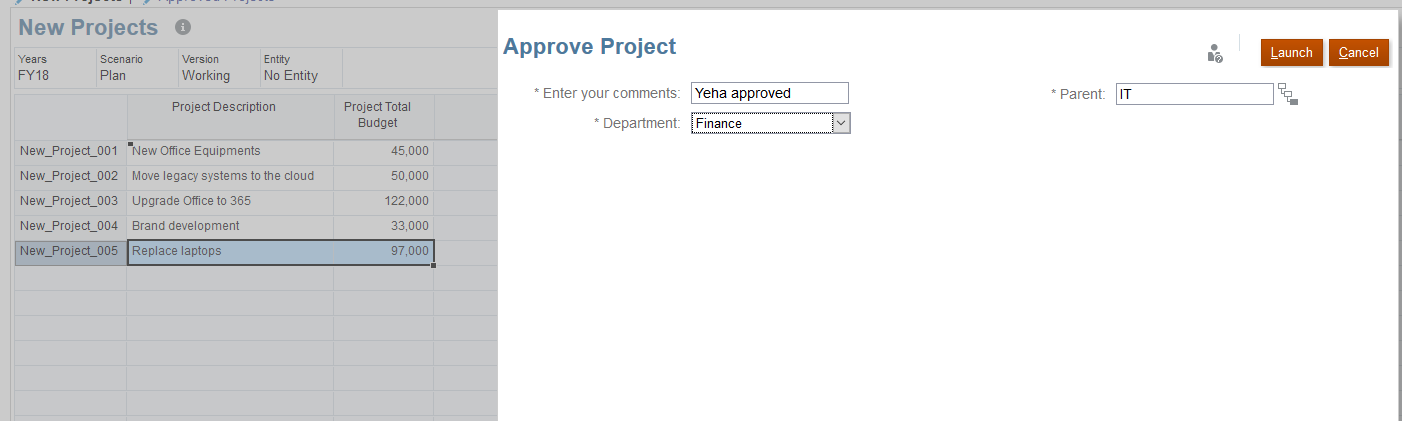
As you can see in the screenshot above, I have provided a comment, selected "Construction" as a parent for the approved project, Finance as my department, and will launch the business rule.


My new project was approved and is no longer shown in the New Projects tab. I'll go to Approved Projects to see what happened. There is a new member "P_1005" intersected with Finance entity with project information and approval details. 


The Approved Projects outline now looks like:


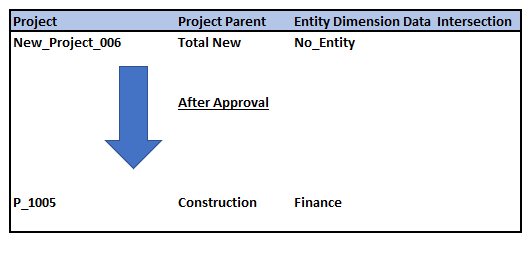
Illustration of what just happened:


Nice huh? You betcha!!


Back to my New Projects form, I'll try and approve another project and see if the rtp comments validation works.


"Yeha approved" is my comment for approval and it's not going to cut it as shown below!.


Sorry, never again Groovy! I'm going to behave from now on.

Now my project is approved (after putting proper comments) and assigning it to IT category and Finance department.


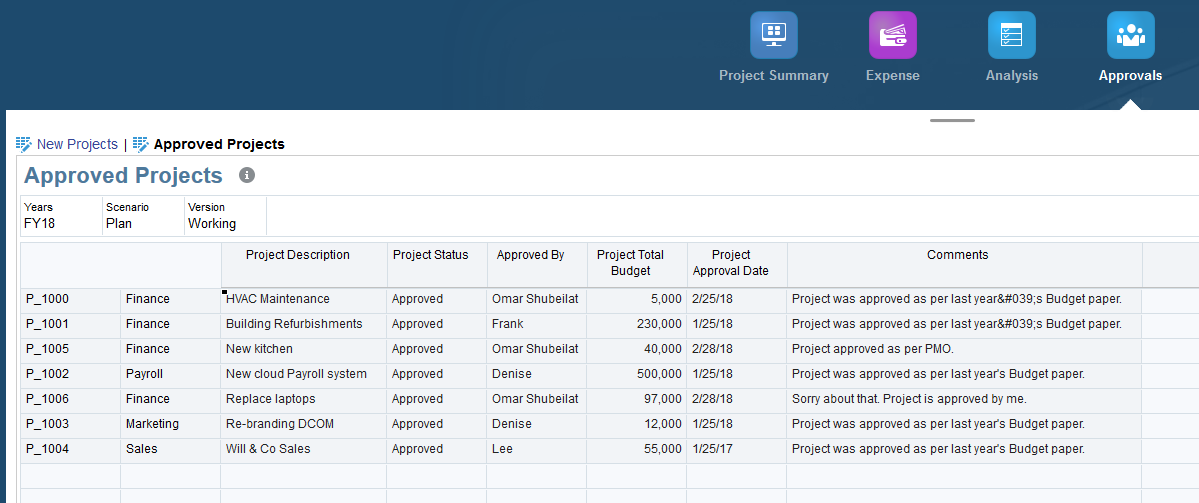
My Approved Projects (notice the new project P_1006).


My Project dimension outline.


And that's it really. Powerful stuff if you ask me, the sky is the limit with Groovy (quite literally).

Main business rule.


 1 
 2
 3
 4
 5
 6
 7
 8
 9
10
11
12
13
14
15
16
17
18
19
20
21
22
23
24
25
26
27
28
29
30
31
32
33
34
35
36
37
38
/*RTPS: {Project} {Year} {Scenario} {Version} {Approver} {Comments} {Department} {ProjectParent}*/
def mbUs = messageBundle(["validation.invalidComment":"You must have at least 15 characters in comments rtp. {0}"])
def mbl = messageBundleLoader(["en" : mbUs]);
validateRtp(rtps.Comments, /^.{15,}$/, mbl, "validation.invalidComment", rtps.Comments);
Dimension project = operation.application.getDimension("Project")
def existingProjects = project.getEvaluatedMembers("ILvl0Descendants(Total Approved)", operation.cube )
existingProjects.sort()
def lastApprovedProject = existingProjects
String lastApprovedProjectCode = lastApprovedProject.last()
int i = lastApprovedProjectCode.find(/\d+/).toInteger()
i++
String newApprovedProject = "P_"+i
Member parentProject = rtps.ProjectParent.getMember()
Map approvedProject = parentProject.newChildAsMap(newApprovedProject)
// Save the new approved ptoject
Member approvedProjectMember = project.saveMember(approvedProject, DynamicChildStrategy.ALWAYS_DYNAMIC)
println rtps.Project.toString() + " is approved. New approved code is " + newApprovedProject
// Copy data to the new project member
String script = """Set CreatenonMissingBlk On;
Fix(${fixValues(rtps.Scenario, rtps.Year, rtps.Version)})
Fix(${fixValues(approvedProjectMember)},@Member(@Concatenate("HSP_ID_",@HspNumToString({Department}))))
"BegBalance"
(
"Project Description" = "Project Description"->"No Entity"->$rtps.Project;
"Project Status" = 1;
"Approved By" = $rtps.Approver;
"Project Total Budget" = "Project Total Budget"->"No Entity"->$rtps.Project;
"Project Approval Date" = @CalcMgrGetCurrentDate();
"Comments" = $rtps.Comments;
)
EndFix
Fix(${fixValues(rtps.Project)},"No Entity")
ClearBlock All;
EndFix
EndFix
"""
println script
return script.toString()


I'll explain the important bits in the rule (read my earlier posts for more explanation).

Validating the comments rtp.


validateRtp(rtps.Comments, /^.{15,}$/, mbl, "validation.invalidComment", rtps.Comments);


Working out the new approved project code.


Dimension project = operation.application.getDimension("Project")
def existingProjects = project.getEvaluatedMembers("ILvl0Descendants(Total Approved)", operation.cube )
existingProjects.sort()
def lastApprovedProject = existingProjects
String lastApprovedProjectCode = lastApprovedProject.last()
int i = lastApprovedProjectCode.find(/\d+/).toInteger()
i++
String newApprovedProject = "P_"+i


Copy the data to the new approved project member, capture the Project Description, Status, Approver (using StringAsNumber Cal Manager variable), Total Budget, Approval date, and the Comments (using StringAsNumber Calc Manager variable).


String script = """Set CreatenonMissingBlk On;
Fix(${fixValues(rtps.Scenario, rtps.Year, rtps.Version)})
Fix(${fixValues(approvedProjectMember)},@Member(@Concatenate("HSP_ID_",@HspNumToString({Department}))))
"BegBalance"
(
"Project Description" = "Project Description"->"No Entity"->$rtps.Project;
"Project Status" = 1;
"Approved By" = $rtps.Approver;
"Project Total Budget" = "Project Total Budget"->"No Entity"->$rtps.Project;
"Project Approval Date" = @CalcMgrGetCurrentDate();
"Comments" = $rtps.Comments;
)
EndFix
Fix(${fixValues(rtps.Project)},"No Entity")
ClearBlock All;
EndFix
EndFix
"""
println script
return script.toString()


The script above is really simple, only thing worthy of mention is me using the Entity dimension hierarchy driven SmartList to move the data from "No Entity" to the user selected entity. Again you can read Pete's detailed post to understand more.


This is the business rule log.


So to recap, Groovy is pretty awesome! it offers a lot of different and powerful design options. My example is pretty straight-forward but you can easily build more complex scenarios and take it from there.


Wish Me Luck in Six Foot trackπŸ’ͺπŸ™πŸ˜Ž