Yes, I'm still writing about Groovy, if you are starting to feel bored about it then you are probably still not aware how powerful and revolutionary this recent addition is, it is not a "nice to have" feature, it's a lot more than that! I don't know how I wrote this post, I woke up at 5 AM and couldn't sleep so thought I should utilize my weekend in a proper way! I'm also running a 10 k race tomorrow, so my apologies in advance for the typos, please ignore and focus on the content. 😉
Oracle was kind enough to give few use cases for Groovy in their library, but the issue is without having media attached to them (pictures and videos) it may be a bit difficult to fully grasp the beauty, power and awesomeness behind the lines and visualize it, so I put up a small demo to share with you.
I built this demo largely borrowing the logic of the following API examples, with my own additions and changes:
1. Multi line script to demonstrate creation of metadata and data with validations
2. Multi line script to demonstrate advanced data validations
This demo will show:
Creation of Metadata on the spot
Run time prompt validations
Data form validations
💥Cross cube validations💥
I will show the demo first, and later share the technical part with more details.
The example is about defining product definitions (min max quantity, discounts and prices..) and taking new orders based on those products, so without further ado, I have a "Product Order" cluster with two cards (Define Assumptions which is a data form pointing to one cube, and Add Order is another data form pointing to another cube).
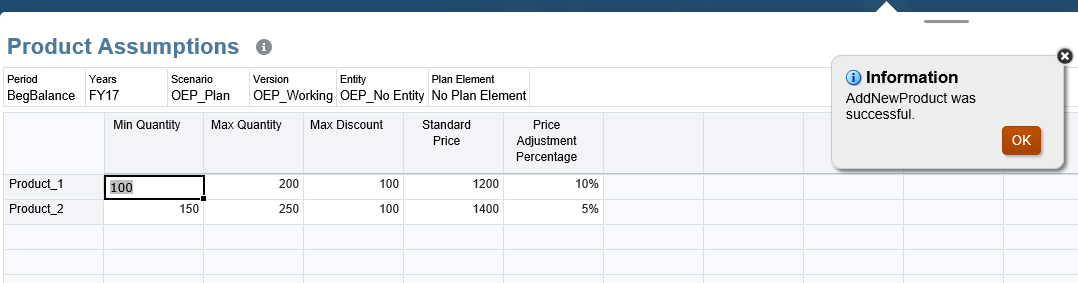
I will start by defining my assumptions, as shown below I have one row (Product_1) with Min Quantity, Max Quantity, Max Discount, Standard Price and Price Adjustment Percentage values. In a nutshell for Product_1 orders must be minimum 100 and maximum 200 with a standard price of 1200 and discount available is 10%
This form is showing all available products (Children of Total_Product)
I also have a menu attached to the form "Add New Product", so let me go ahead and add a new product, I have to provide the parameters (quantity, discount and price) and in this instance I did not specify any validation, I did not even ask for the Product code/name for the new member which I will show later.
So after launching the rule, a new product member is added with the given assumptions.
I'll go ahead and add one more product, and enter the assumptions for the three products as shown below.
And you can see from the dimension outline the new members are added. (By default they took the prefix Product_ )
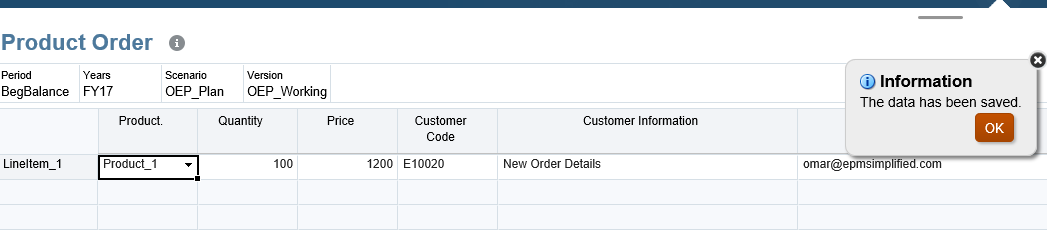
Now I'm done (for now) with defining the assumptions, I will go to "Add Order" and create a new order.
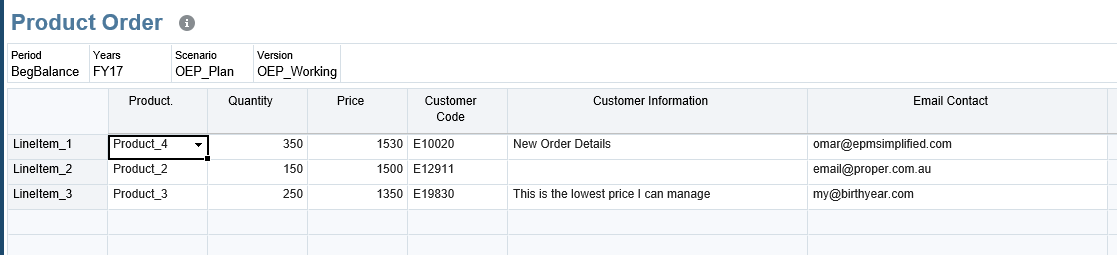
My Product Order form which is pointing to a separate cube, and I'm using a hierarchy driven smart list to assign the Product for every order. (I'm not going to explain the hierarchy driven smart list bit so if you're not familiar with it then I suggest you read
Celvin's post , if you're from TM1 or IBM Planning Analytics background it's similar to pick lists which I wrote about
here )
In this form I have a couple of validations:
1. Quantity must be within the Product Min-Max range defined in the Assumptions form (which happens to be in a separate cube)
2. Price must not be lower than the standard price plus the adjustment percentage defined for that product
3. Customer Code must start with E followed by five digits, for example E12345
4. Email Contact must be a proper email format
If you click on Product. cell you'll get the hierarchy driven smart list drop down:
Now, will enter the order details as shown below, I entered a wrong customer code and invalid email id:
What happens when I save? Nothing gets saved, because of the validations
The validation error messages
I will change the values to the proper format and save again.
So far so good, OK I'll add a new line for a new order (I have a menu attached to the from to add new lines), I also have the same validations for customer code and email address at the run-time prompt level which will stop the rule from running if the prompt values are invalid:
I gave a wrong customer code format and tried to launch the rule
Rule did not launch, I need to enter the correct customer code format and then launch again to add the new line as shown below, I also did not specify the name or number of the item.
In the old days of Essbase and Planning we used to create generic members (Line 1 to 100) and create a rule to loop the 100 lines and create a block for the next available member, this example however is fundamentally different because I'm adding a new member all together as shown in my dimension outline.
So now back to my new item, I will assign a product number of the order, specify the quantity and price, if you remember my Product 2 assumptions I had a minimum order of 150 defined with discount percentage set at 5%) so what happens if I save the form? I'll get a validation error telling me exactly what went wrong (In this case I entered 10 where I'm allowed to enter a range of 150 to 250) as shown below.
This is how awesome and extremely powerful (if not mighty) Groovy is, in one cube I'm validating the order details data entered against product assumptions from a separate cube, the assumptions are entered at Product dimension level, and the order details data I'm validating is entered in the Account dimension linked by a hierarchy driven smart list.
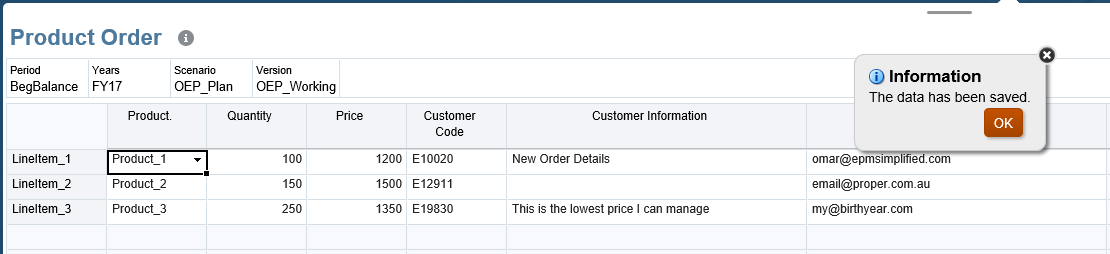
Back to the example now, I'll change the quantity to fit within min-max range and save the form.
I'm done with the second order, I will go add a new order for Product 3 with 250 items at the price of 900, this is way below the allowed discount but I'm giving a note (the customer is a friend of my girlfriend and I'm trying to give him a deal).
Unfortunately, the order can't be saved because the price is lower than 1350 (Product 3 has standard price of 1500 and 10% discount)
This means I can't give that price and I need to change it.
What happens if I change the product for a saved order and it happens to be invalid for the new product? let's try this, first I'll add another Product (Product_4) and define the assumptions.
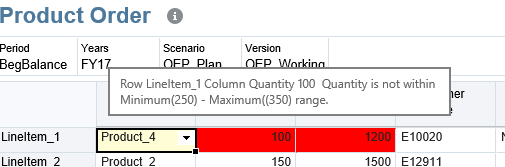
I will change the order details of my first order Product 4 and save.
I got two validation messages telling me exactly what the problem is and the allowed value/range , one for the quantity and another for the price as per the assumptions defined for Product 4.
So I'm left with no option but to change the order details and save the form again.
And life goes on from now on 😉
Groovy scripts and other artifacts:
Add New Product:
 1
 2
 3
 4
 5
 6
 7
 8
 9
10
11
12
13
14
15
16
17
18
19
| /*RTPS: {MinQty} {MaxQty} {Discount} {StdPrice} {PriceAdjPercentage} {Scenario} {Year} {Version}*/
def rowDimensions = operation.grid.rows.headers.essbaseMbrName
int nextProductCounter = rowDimensions.size() + 1
String nextProduct = "Product_$nextProductCounter"
Dimension productDim = operation.application.getDimension("Product")
Member parentProduct = productDim.getMember("Total_Product")
Map newProduct = parentProduct.newChildAsMap(nextProduct)
// Save the new Product
Member product = productDim.saveMember(newProduct, DynamicChildStrategy.ALWAYS_DYNAMIC)
// Generate the calc script to save product average price
"""Set CreateNonMissingBlk On;
Fix(${fixValues(rtps.Year, rtps.Scenario, rtps.Version, product)}, "BegBalance","No Plan Element")
"OEP_No Entity"(
"Min Quantity" = $rtps.MinQty;
"Max Quantity" = $rtps.MaxQty;
"Max Discount" = $rtps.Discount;
"Standard Price" = $rtps.StdPrice;
"Price Adjustment Percentage" = $rtps.PriceAdjPercentage;
)EndFix;"""
|
Validate Order Details:
 1
 2
 3
 4
 5
 6
 7
 8
 9
10
11
12
13
14
15
16
17
18
19
20
21
22
23
24
25
26
27
28
29
30
31
32
33
34
35
36
37
38
39
40
41
42
43
44
45
46
47
48
49
50
51
52
53
54
55
56
57
58
59
60
61
62
63
64
65
66
67
68
69
70
71
72
73
74
75
76
77
78
79
80
81
82
83
84
85
86
87
88
89
90
| class ProductData {
Integer Product
DataGrid.DataCell minQty
DataGrid.DataCell maxQty
DataGrid.DataCell standardPrice
DataGrid.DataCell maxDiscount
public String toString() {
return "minQty: ${minQty?.formattedValue}, maxQty: ${maxQty?.formattedValue}, standardPrice: ${standardPrice?.formattedValue}, maxDiscount: ${maxDiscount?.formattedValue}"
}
}
// Create a resource bundle loader containing localized messages needed by this rule.
def mbUs = messageBundle( ["validation.missingmember.product":"No Product found."] )
def mbl = messageBundleLoader(["en" : mbUs]);
//Build DataGrid for Product Assumptions
Cube driverCube = operation.application.getCube("OEP_FS")

DataGridDefinitionBuilder builder = driverCube.dataGridDefinitionBuilder()
builder.addPov(['Years', 'Scenario', 'Period', 'Version', 'Entity', 'Plan Element'], [ ['FY17'], ['OEP_Plan'], ['BegBalance'], ['OEP_Working'], ['OEP_No Entity'], ['No Plan Element'] ])
builder.addColumn(['Account'], [ ['Min Quantity', 'Max Quantity', 'Standard Price' ,'Price Adjustment Percentage'] ])
builder.addRow(['Product'],  [ ['ILvl0Descendants("Total_Product")'] ])

DataGridDefinition gridDefinition = builder.build()

// Load the data grid from the driver cube
DataGrid dataGrid = driverCube.loadGrid(gridDefinition, false)
// Create a map of product data by product name from the data grid.
def productDataMap = new HashMap()
StringBuilder scriptBldr = StringBuilder.newInstance()
if(dataGrid) {
    println("dataGrid is not null")
    GridIterator itr = dataGrid.dataCellIterator('Min Quantity')
    itr.each {
        def productData = new ProductData()
        productData.minQty = it
        productData.maxQty = it.crossDimCell('Max Quantity')
        productData.standardPrice = it.crossDimCell('Standard Price')
        productData.maxDiscount = it.crossDimCell('Price Adjustment Percentage')
        productDataMap[(it.getMemberName('Product'))] = productData
        println(it.getMemberName('Product') + ": " + productData)
    }
}
DataGrid grid = operation.grid
// Construct an iterator that iterates over all data cells containing the Product member.
GridIterator itr = grid.dataCellIterator('Product.')
// Throw a veto exception if the grid has at least one cell but does not contain any cells containing the Product member.
if(!grid.empty && !itr.hasNext()) {
// Found 0 cells with Product
throwVetoException(mbl, "validation.missingmember.product");
}
// Validate the values in the grid being saved against the values in productDataMap.
itr.each {
ProductData productData = productDataMap[it.DataAsSmartListMemberName]
if(productData == null) {
println("Unable to locate Product data for: ${it.DataAsSmartListMemberName}, with data value: ${it.formattedValue}" )
} else {
DataCell quantity = it.crossDimCell('Quantity')
if(quantity == null)
println("Unable to locate quantity")
else if(quantity.data < productData.minQty.data || quantity.data > productData.maxQty.data) {
quantity.addValidationError(0xFF0000, "Quantity is not within Minimum($productData.minQty.formattedValue) - Maximum(($productData.maxQty.formattedValue) range.")
}
DataCell customerPrice = it.crossDimCell('Price')
Double discount = ((1 - productData.maxDiscount.data) * productData.standardPrice.data)
if(customerPrice == null)
println("Unable to locate discount")
else if(customerPrice.data < discount) {
customerPrice.addValidationError(0xFF0000, "Can't go for discount lower than : $discount ")
}
DataCell customerCode = it.crossDimCell('Customer Code')
if (customerCode.formattedValue ==~ /^(?!(E[0-9]\d{4})$).*/){
customerCode.addValidationError(0xFF0000, "Customer Code must start with capital E followed by five digits (for example E12345)")
}
DataCell customerEmail = it.crossDimCell('Email Contact')
if(customerEmail == null) {
println("No email")
} else if (customerEmail.formattedValue ==~ /^(?!(^[a-zA-Z0-9_.-]+@[a-zA-Z0-9-]+\.[A-Za-z]{2,3}(\.[A-Za-z]{2})?$)).*/){
customerEmail.addValidationError(0xFF0000, "Enter a valid email address.")
}
}
}
|
I won't explain every line (at least not in this post) but I'll highlight the important bits:
This section creates a data grid for the product assumptions (which we will use to validate the entered data in the form) and loads the data in the grid.
//Build DataGrid for Product Assumptions
Cube driverCube = operation.application.getCube("OEP_FS")
DataGridDefinitionBuilder builder = driverCube.dataGridDefinitionBuilder()
builder.addPov(['Years', 'Scenario', 'Period', 'Version', 'Entity', 'Plan Element'], [ ['FY17'], ['OEP_Plan'], ['BegBalance'], ['OEP_Working'], ['OEP_No Entity'], ['No Plan Element'] ])
builder.addColumn(['Account'], [ ['Min Quantity', 'Max Quantity', 'Standard Price' ,'Price Adjustment Percentage'] ])
builder.addRow(['Product'], [ ['ILvl0Descendants("Total_Product")'] ])
DataGridDefinition gridDefinition = builder.build()
// Load the data grid from the driver cube
DataGrid dataGrid = driverCube.loadGrid(gridDefinition, false)
After Grid is created and loaded, this iterator will fill the object productData of class ProductData (defined at the beginning) and use it for validations.
if(dataGrid) {
println("dataGrid is not null")
GridIterator itr = dataGrid.dataCellIterator('Min Quantity')
itr.each {
def productData = new ProductData()
productData.minQty = it
productData.maxQty = it.crossDimCell('Max Quantity')
productData.standardPrice = it.crossDimCell('Standard Price')
productData.maxDiscount = it.crossDimCell('Price Adjustment Percentage')
productDataMap[(it.getMemberName('Product'))] = productData
println(it.getMemberName('Product') + ": " + productData)
}
}
A sample job console log after running this rule:
Add New Order:
 1
 2
 3
 4
 5
 6
 7
 8
 9
10
11
12
13
14
15
16
17
18
19
20
21
22
23
24
| /*RTPS: {CustomerCode} {Email} {Year} {Scenario} {Version}*/
def mbUs = messageBundle(["validation.invalidcode":"Customer Code is invalid: {0} (Ex Valid Customer Code E12345","validation.invalidemail":"The email format is wrong {0}."])
def mbl = messageBundleLoader(["en" : mbUs]);
def rowDimensions = operation.grid.rows.headers.essbaseMbrName
int nextItem = rowDimensions.size() + 1
String nextLineItem = "LineItem_$nextItem"
//validate rtp values
validateRtp(rtps.CustomerCode, /^E[0-9]\d{4}$/, mbl, "validation.invalidcode", rtps.CustomerCode);
validateRtp(rtps.Email, /^[a-zA-Z0-9_.-]+@[a-zA-Z0-9-]+\.[A-Za-z]{2,3}(\.[A-Za-z]{2})?/, mbl, "validation.invalidemail", rtps.Email);
Dimension customDim = operation.application.getDimension("Entity")
Member parentOrder = customDim.getMember("Total_LI")
Map newLineItem = parentOrder.newChildAsMap(nextLineItem)
// Save the new line item
Member lineItem = customDim.saveMember(newLineItem, DynamicChildStrategy.ALWAYS_DYNAMIC)
// Generate the calc script to save the line item
String script = """Set CreatenonMissingBlk On;
Fix(${fixValues(rtps.Scenario, rtps.Year, rtps.Version, lineItem)},"BegBalance")
"No_Account"(
"Customer Code" = $rtps.CustomerCode;
"Email Contact" = $rtps.Email;
)
EndFix"""
println script
return script.toString()
|
Product smart list:
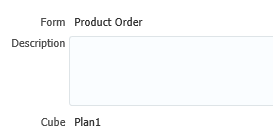
Product Assumptions and Product Order Forms (just to show they are built for different cubes):
That is it, this was a lengthy post but I really hope it can help you better understand how we can embed Groovy and use it in our solutions.