Wednesday, August 18, 2021

Fully Automated Cloud-based EPM Backups in OCI

I've been having a bit of time on my hands lately thanks to the current covid lockdown we have in Australia and I got to spend more time setting up my Oracle Cloud Infrastructure(OCI) tenancy. 

One of the topics I wanted to write about is a fully automated cloud-based backup solution for EPM Cloud in OCI. The solution I'm going to covert in this post is 100% in the cloud with no on-premise resources/dependencies at all! Pretty cool if you ask me, so let's get to it.


This diagram is a very high-level architectural diagram of the solution:


So, the main OCI components we are looking at here are as follows:


  1. Linux Virtual Machine
  2. Virtual Cloud Network
  3. Object Storage bucket for backup files
  4. Object Storage bucket for log files
  5. Logging services
  6. Service Connector Hub
  7. Topics, Subscriptions and Alarms
  8. EPM Automate and CLI

I will explain the OCI components used a little bit more as I go through the technical solution in the following sections. The idea in a nutshell is to use Linux machine to do the job for us, how would that process look like from start to end?

  1. Check if the backup file exists in Object Storage (this can be easily sipped with timestamps)
  2. Delete the file in Object Storage if it exists
  3. Login to EPM Cloud and Copy the Artifact Snapshot to Object Storage
  4. Send job status email notifications
  5. Delete old backup files in OCI to maintain n number of days of backups


One last thing before I show how to setup those steps and automate the solution from start to end, the following is a list of prerequisites that must are needed for the solution to work.

Create user to use with OCI related jobs

Create group and add the user to it

Generate Auth Token for the user in step#1 (EPM Automate copyToObjectStorage requires Auth token, NOT the OCI console login password)

Create IAM policy to grant the group created in step#2 the appropriate access to Object Storage (here is a snippet of my policy statements, ObjectStorage is the name of the group)

You don't need to assign OBJECT_DELETE permission so this one is optional. You just need the user to be able to create new files in Object Storage because the EPM Automate command requires a user with sufficient Object Storage privileges.


Now we are done with the prerequisites, let me start with the components of the overall solution:

Bash script

This is the main script I will be adding to the list of cron jobs.


Now let me highlight the bits that I think needs some explanation.

The next line retrieves the latest backup file stored in the bucket by using OCI list objects commands and jq which is a JSON processor and stores the filename in a variable to be used in the next section.

latestfile=`oci os object list --bucket-name $bucket |  jq -r '.data[-1].name'`

Example:


This section checks if the snapshot file we are about to copy to the object storage exists in OCI, if it exists, then delete the file before the backup process kicks off. This section can be easily replaced by an hourly timestamp if required, but for demo purposes I have decided to keep in this post just in case someone out there benefits from it.


#delete file in OCI
if [[ $latestfile == $snapshotname ]]
  then 
  echo "file exists $latestfile $snapshotname"
  oci os object delete --bucket-name $bucket --object-name $snapshotname --force
  else
  echo "file does not exist $latestfile $snapshotname"
fi

Next is the "copyToObjectStorage" EPM Automate command, and the next block is to check if the copy was successful or not, and finally send email job status notifications.

$epmauto copyToObjectStorage "Artifact Snapshot" "$oci_user" "$oci_token" https://swiftobjectstorage.ap-sydney-1.oraclecloud.com/v1/NamespaceOCIDgoeshere/$bucket/$snapshotname &> $logmessage

if [ $? -eq 0 ]
 then
  $epmauto sendMail "$email" "EPM Cloud automated backup completed successfully" Body="EPM Cloud automated backup completed successfully"
 else
  emailBody=$(tac  $logmessage|grep -m 1 .)
  $epmauto sendMail "$email" "EPM Cloud automated backup completed with errors" Body="EPM Cloud automated backup completed with the following error message: $emailBody"
fi

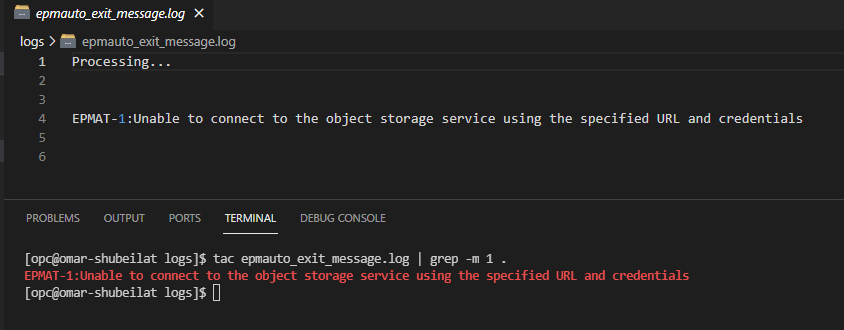
If you look carefully, you will notice I'm saving the output of the copyToObjectStorage EPM Automate command in a log file and the reason for that is I need a way to catch the error message and include it in the email body.

                                &> $logmessage

Since this is a REST based command, the first line of the output might not be the error message we are looking for. So I'm simply writing a new file every time the process is run and if the copy operation failed, then I'm fetching the last line in that log file and including it in the email body.

Here is a an example of a log file containing an error message and how to get the error message out of it.

The final block of the script is to only keep n number of backup files in the Object Storage bucket. To get the filename that must be deleted, I'm using jq to parse the JSON output of the "oci os object list", sort out based on creation date and fetch the first item in the array (i.e. the oldest item) to pass on to the cli delete command.

#Delete backups older than a week

i=`oci os object list -bn $bucket | jq  '.data | length'`
for ((e=$i; e > $numberofdaytokeeps; e-- ))
 do
 x=`oci os object list -bn $bucket | jq -r '.data | map({"name" : .name, "date" : ."time-created"}) | sort_by(.date) | .[0].name'`
 echo "Deleting the $e th file: $x"
 oci os object delete --bucket-name $bucket --object-name $x --force

 done

Object storage

I'm using two OS buckets, one to store the EPM backup files and one for the OCI logs.


I have enabled the write logs for the main bucket so that I can generate the logs in the next step.


Service connector

I'm using a service connector to automatically move the logs to Object Storage, I've configured this connector to move the logs every time there is a "put request" activity.


Alarms

The final component in the solution (it is really a nice to have but it is worth having because OCI is awesome I guess?) is an alarm definition that is used to trigger email notifications if there are no files copied to the storage bucket in the last 24 hours.


As you can see the alarm status is "ok" which means there has been a successful put request in the specified OS bucket.

Cron jobs

The final piece of the puzzle is to automate this process by creating a crontab entry to run the bash script and that is it.


That is it! the solution is ready and live. I've been running this scripts for quite some time now and here is my OS bucket:


The backup logs


Sample log:


Notifications

Here is an email of a successful backup job:


Failed job:


There is also an alarm definition that kicks in if there are no files copied in the last 24 hours, to check if the alarm is in firing mode (i.e. something is wrong). For demo purposes, I'm going to change the alarm definition to trigger if less than 2 objects were copied in the last 24 hours so I can show what the alarm notification looks like and how it can be viewed in your OCI mobile application.

Here is a snapshot of the firing alarm, notice the alarm history is showing a metric of the actual number of files copied (one files) versus the value defined in the alarm in red dotted line (2).


All topic subscribers will also get an email notification informing them the alarm is in firing mode. Note the alarm type is OK_TO_FIRING


The cool thing about alarms is you can view them using OCI mobile application which is pretty neat! You can see the status of the alarm, what time it was fired and when was the last time its status was OK.


Now I will change the alarm definition to set to trigger if no objects were copied in the last 24 hours and will show how the alarm status changes and what notification is sent to the topic subscribers. Note the alarm type is FIRING_TO_OK

And the alarm notifications are gone on the mobile application.


That is it for this post, as you can imagine the combination of EPM Cloud and OCI is quite powerful and the sky is the limit when it comes to blending EPM Cloud and OCI resources to get the best out of Oracle cloud.

Thank you for reading.


Friday, February 5, 2021

Financials Cloud for EPM folks - Hierarchies

This is the second post of my Financials Cloud for EPM folks series, in these posts I'm trying to familiarize EPM professionals with ERP Financials Cloud because we all have to interact and work with ERP cloud at some point. 

In the first post, I covered value sets and in this post I will briefly writing about hierarchies. In the ERP world metadata is defined in two ways:

1- Value sets (flat lists) primarily used for transactions, journal entries and all kind of ERP related configuration/

2- Hierarchies - primarily used for reporting and budgetary control purposes (hierarchical reporting in ERP? Yes, there are multiple Essbase cubes in ERP for reporting ad budgetary control purposes)

Why is it important for us in EPM world? Well, unless your metadata is 100% synced between Planning/Consolidation applications and ERP then there is always a need to get metadata information from ERP. Whether it is for manual updates, description changes, member additions/movements in the hierarchy etc.

So let's get on with it and show how to access your hierarchies in ERP cloud.


From Settings and Actions go to Setup and Maintenance


Search for "Manage Account Hierarchies" and click on it, as you can see below this task is located in Financial Reporting Structures.


In Manage Account Hierarchies you will see all the available dimensions, and the associated tree versions. (Tree version is another copy of the hierarchy).


If you expand any of the nodes you will find the tree version(s) and the active/current one. From there, simply click on Actions -> View Tree Version.


And here you can navigate the hierarchy in a simple way. Let's say you are trying to load actual data in Planning and the rule is failing because of a missing member, the log will tell you what is the member name but it won't tell what is the parent member! So from here you can easily figure it out.

Hope you find it useful.

Dashboards 2.0 - Geomaps Part 2

 This blog is a quick follow-up to my last post about Geomaps, and the focus of this post is to show another way we can build the metadata to support Geomaps chart types.


While there are restrictions when it comes to country names, there is nothing that stops us from creating additional members that roll up to countries. For example, let us look at the following hierarchy:


As you can see above, I have suburbs rolling up to cities, and finally to countries which is the level the Geomaps will work at. So this means we can store data in non-recognized Geographical members (Manly as an example) but as long as they roll up to recognised members (Australia) then we are good to go.


To test this I have created a data form to enter some data and created a dashboard on top of it. Here is the data in a tabular format:


The same data in a Geomap chart type:


Yes, it works just fine! pretty cool and extremely powerful if you ask me!


Saturday, September 26, 2020

Dashboards 2.0 - Geomaps


This is my first blog post in a while and it’s mainly due to 2020 being one challenging year on a personal level! Apart from the COVID-19 situation the world is facing, I broke my right foot back in February and I had to go under the knife in March, and consequently, I was sidelined for three months and forced to use crutches and wear a boot. So, you can imagine blogging was not on top of my list of priorities.

This post is about the Geomaps that was newly introduced in Dashboard 2.0, I was interested to see how the metadata/location tagging side of things would work in a Planning application and thanks to Oracle, the new feature did not disappoint.

I will be using the Vision application for my demo and I will start with the hierarchy, I used Entity dimension (you can use any dimension which I’m going to show at the end) to create a countries rollup so I can simply enter some data and see if the dashboard would work.

To understand how do you need to build the metadata for Geomaps to work, there is a file to download which Oracle has provided with the full list of countries. You need to use the names exactly as they are shown in the file for Geomaps to work. You don’t need to create the full list or follow the hierarchy provided in the file, you just need to make sure you have a member name or an alias that matches the country name in the file.

To download the file, create a new dashboard 2.0:


Select any data form and drag it to the canvas, change the view to Geomap and go to chart type properties to download the file.


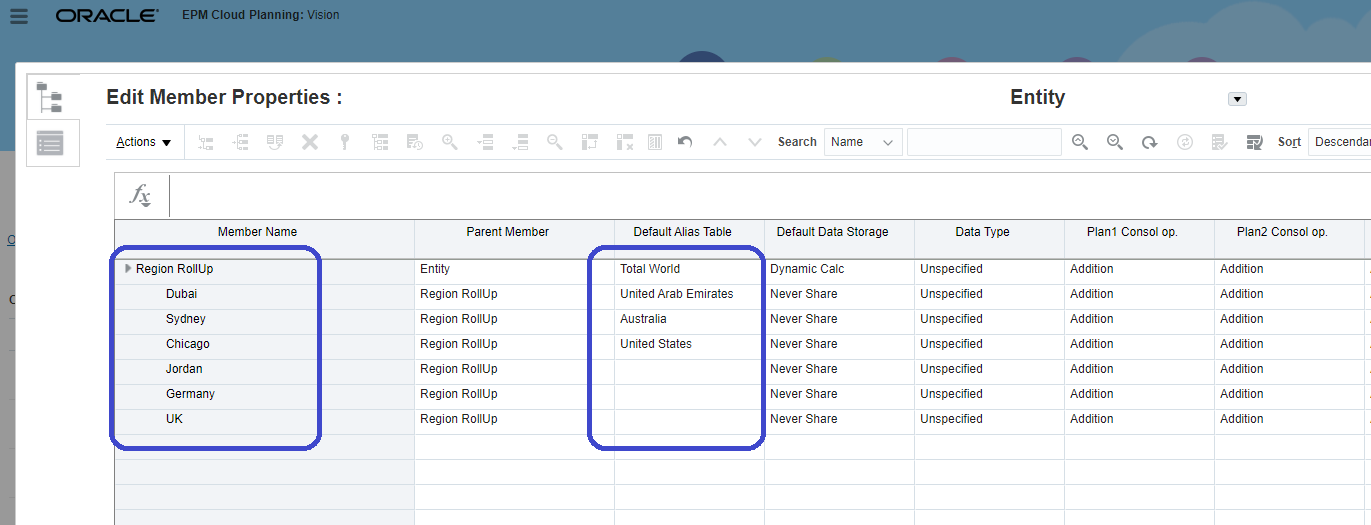
So, based on the file I’m going to create a new rollup in the Entity dimension (you can use any dimension and I’m going to show that at the end) and notice that I’m creating a mix of cities and countries as members and assigning the country name to the city members to see if this would work! Here is the rollup:


Next thing, I will enter some dummy data so I can use the form in the dashboard.


The last step is to create a dashboard 2.0, select the data form, and change the chart type to Geomaps.

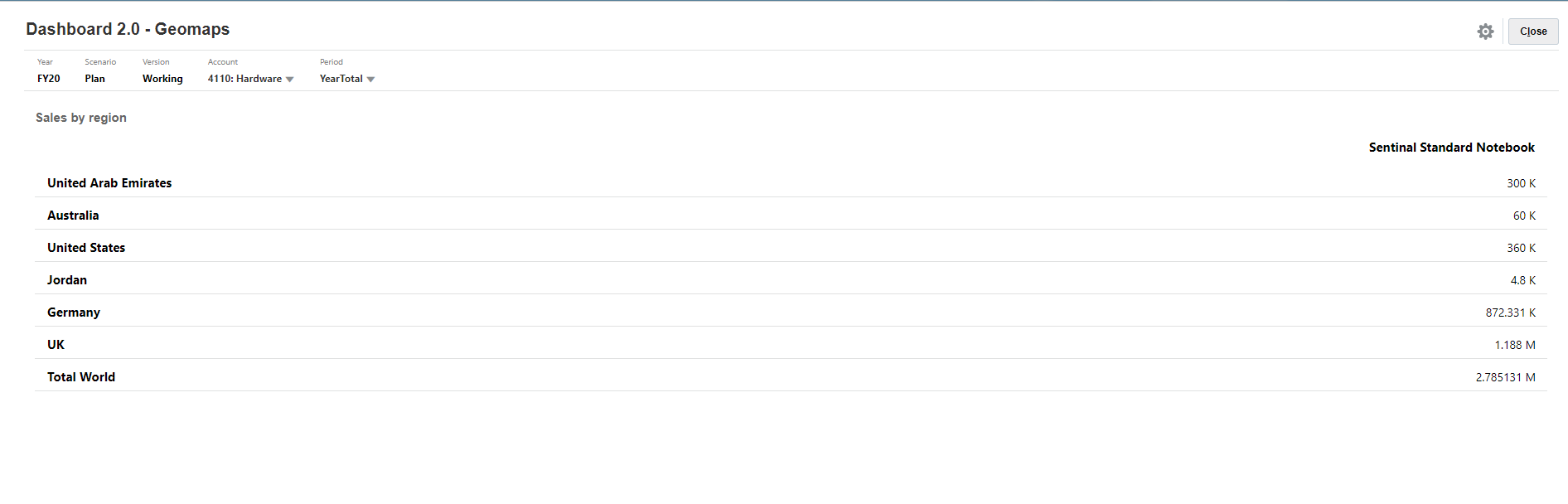
Here is the dashboard in tabular format and you can see the data is showing for all countries.


I will change the chart type to Geomaps and see the result

And yes, it is working except for the UK numbers and that is because the member name is “UK”, not “United Kingdom” as specified in the original file. 


So, to fix this I will simply add an alias to the member.


I will refresh the dashboard and now I can see the UK numbers.


That is it, it is straight forward and very simple to set up. Thanks, Oracle!

Before I wrap it up, I want to show that you can use any dimension, and not just Entity, to store your countries metadata. So, I created another rollup in the Channel dimension as follows:


And a simple data form to store the data (notice the No Entity member selection).


Finally, here is the dashboard based on the Channel rollup.


As demonstrated, the new geomaps chart type is pretty powerful and relatively simple to set up, and most importantly, we don’t need to have any major changes in the application to get it to work.


Thursday, December 5, 2019

Quick tip - Period Mapping Type

I recently bumped into a weird and vague error message while trying to load an ERP custom query in Planning Cloud using the integration feature added in October 2019 release. I'm not going into details of how to setup the integration because it's well documented, so I'll just cover the error in case you run into it.

To summarize the steps, I have:

1. Created BI report using SQL data model with CSV output


2. Created an Enterprise Scheduled job to trigger the same report from ERP's Scheduled Processes


3. Created a Data Source integration application in Data Management


4. Finalized the mapping details in Data Management

All I have to do now is to run the integration! Unfortunately, the data load rule failed at "Import data" stage and I bumped into this error.


FATAL [AIF]: Error in Insert Process Details

The good thing is the ERP extract is getting exported and pushed to EPM without any issues, it's just failing to import in the staging area for some reason. How did I know the extract was working from ERP side? Well I checked the scheduled job output files in ERP and Data Management files in EPM (used EPM Automate) and the extract is there.

Here is the scheduled processes status in ERP indicating the job was successful from ERP side.


The log didn't have any meaningful information apart from FATAL [AIF]: Error in Insert Process Details, only this line so I had to create an SR with Oracle to sort it out and luckily they got back to me with the solution! it was the period mapping type! I'm trying to load the extract in BegBalance & No Year so I was using application level defined periods (not general mapping) and the integration had the "Explicit" Period Mapping Type by default.

After changing it to default it worked just fine.


Sunday, August 25, 2019

Financials Cloud for EPM folks - Value Sets

We all have to work with ERP applications in our EPM implementations one way or another, and I always thought its's beneficial to have some basic understanding and navigation skills in Financials Cloud, it helps when you're troubleshooting metadata issues or data reconciliation etc, so I'm going to start a light weight series on Financials Cloud to cover topics I find helpful when I'm working on a Planning, Profitability or Enterprise Reporting solution.

Before I begin I think it's worth mentioning that CoA structure in Financials is defined in two areas:

1. Value sets - Flat list of values for each segment and their respective properties
2. Hierarchies - Parent/child hierarchy representation for each segment.

In this post I will cover the Chart of Accounts Value Sets, how to navigate and check for specific segment value codes, I will be using a General Accounting Manager role for this. Here is the role name, code and description for reference.


First, we have to navigate to Setup and Maintenance and to do that we have three options.

1- From the landing page (this is the standard theme, you'll probably have a custom defined theme setup but it should be the same).


2- From the Navigator


3. From user settings and actions (click on the username in the top right corner)


Next thing we need to navigate to the setup page for Financials.


Click on Financial Reporting Structures functional area and then click on Manage Chart if Accounts Value Sets


This will take you to the setup page where you have your CoA segments defined, from this page select  General Ledger as your module and hit search to retrieve your CoA segments.


This is the CoA structure in this scenario. Account, Company, Cost Centre, LoB and Product segments.


All you have to do is select one of the segments, click Manage Values and search for your value to retrieve certain information like description or start/end dates (not relevant for EPM). Here you can see the Account segment values and their properties.


And that's it for today.