Wednesday, August 3, 2022

Quick tip - Groovy rule validates successfully but fails to run

 This is a quick post about accessing Calc Manager rules properties using groovy class Rule.


I have the following script that validates just fine.


But if I try to run the rule I get the following error message:


The issue is caused by the rule not being deployed to the Planning tables:


The solution is simple. Deploy the run the rule again!


Monday, July 18, 2022

Enterprise Profitability and Cost Management (EPCM) - REST API - Calculate Model

 I found a typo in the Calculate Model REST API  in EPCM documentation that made go around in circles for a couple of hours trying to figure out what exactly is the problem! I already got in touch with the Oracle team in charge of the documentation and they are going to update the documentation at some point, so this post is about navigating such issues in the futures.


So the doco says the parameters (jobType and jobName) are required and their values must be "Calculate Model"


However, when I first tried to use this API using the exact same information, I got the following error:

"A job with name Calculate Model and type Calculate Model was not found. Try again with a valid job name and type"


Here comes the going around in circles bit, I'm following the exact instructions provided in the documentation so I thought there must be a typo somewhere, so what is the best way to find out the issue? EPM Automate commands is the correct answer, I know there is "calculateModel" epm automate command so I thought I will run the command, analyse the logs, and search for the correct parameter values.

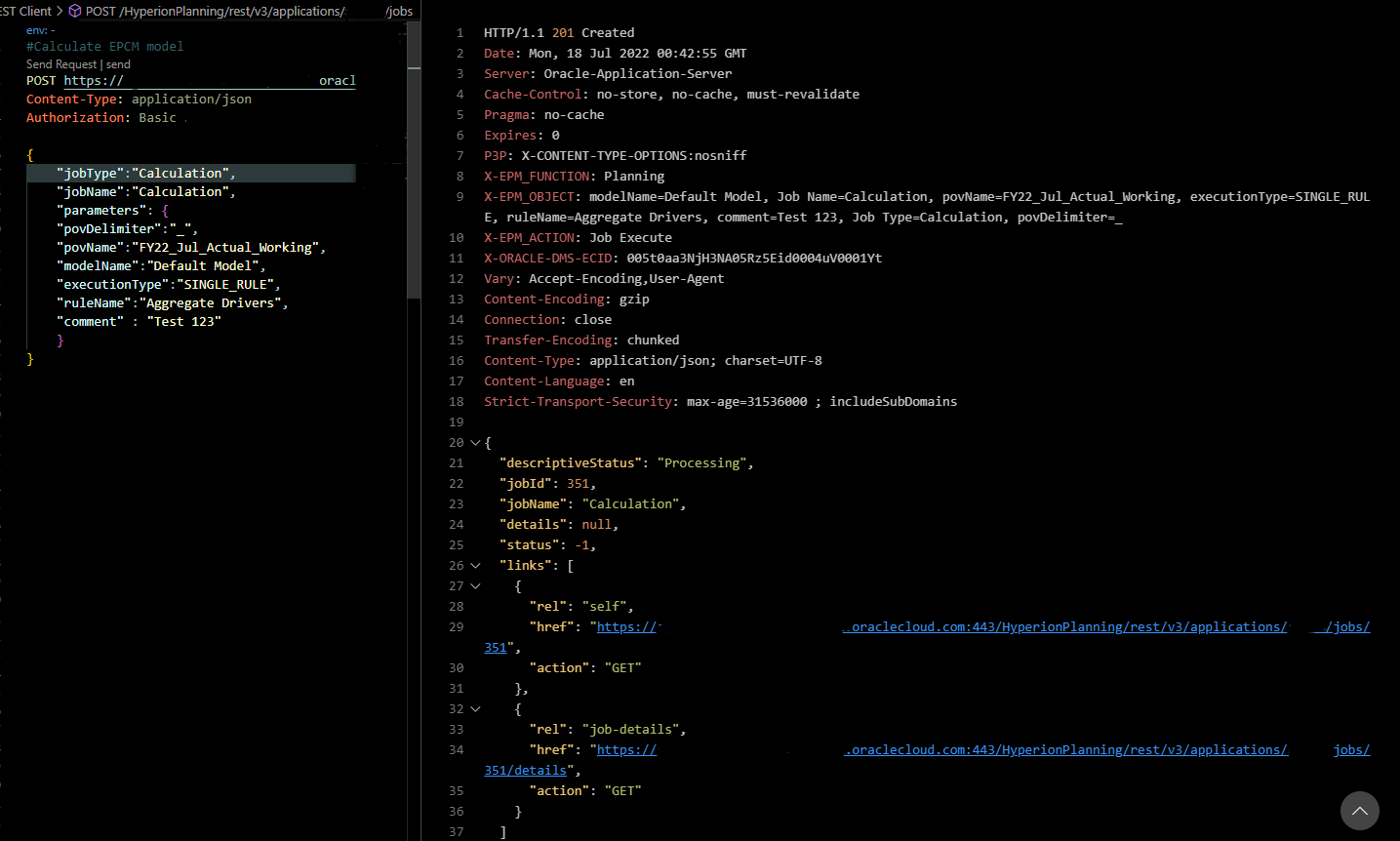
After doing so, I found out the correct parameter values for jobName and jobType is "Calculation", not "Calculate Model" as per the screenshot below:

So I updated my REST request and replaced "Calculate Model" with "Calculation" and, Voila! it worked like a charm!


Enterprise Profitability and Cost Management (EPCM) - Quick Tips - The Rule Model does not exist for selected POV.

 This is another quick tip about an ambiguous error I came across while implementing EPCM for a client of mine. The error stopped me from calculating the model and it just says "The rule Model does not exist for selected POV" (which is not extremely helpful if you ask me).


Luckily, the solution is straight forward after I ran the Model Validation" and it turned out to be a renamed member that is no longer referenced in the rule.


And this is the error you will see when you edit the specified rule.


Finally, just update the rule and point to the renamed member and that's about it, you are good to go!

Enterprise Profitability and Cost Management (EPCM) - Quick Tips - NullPointerException

 I came across this very generic error while implementing EPCM for a client of mine and as you can see, the error is not informative. the error popped out while selecting ruleset range and all rules options only.


And after a lot of digging I found out this issue was caused by new rules that were never calculated before and in order to work around it, I ran the rule individually (as a single rule processing range) and the error never popped up again.


I don't know if you are going to experience this issue or not, but if you do, the solution is simple. just run and calculate the new rules at least one time as "SIGNLE RULE" before selecting ALL RULES or RANGE option.


Monday, April 11, 2022

Groovy and Essbase Cloud APIs - Part 3

 In my previous post, I showed you how to setup Essbase API working directory and create a simple Groovy script. In this post, I will explain what the script is doing and how to run it.

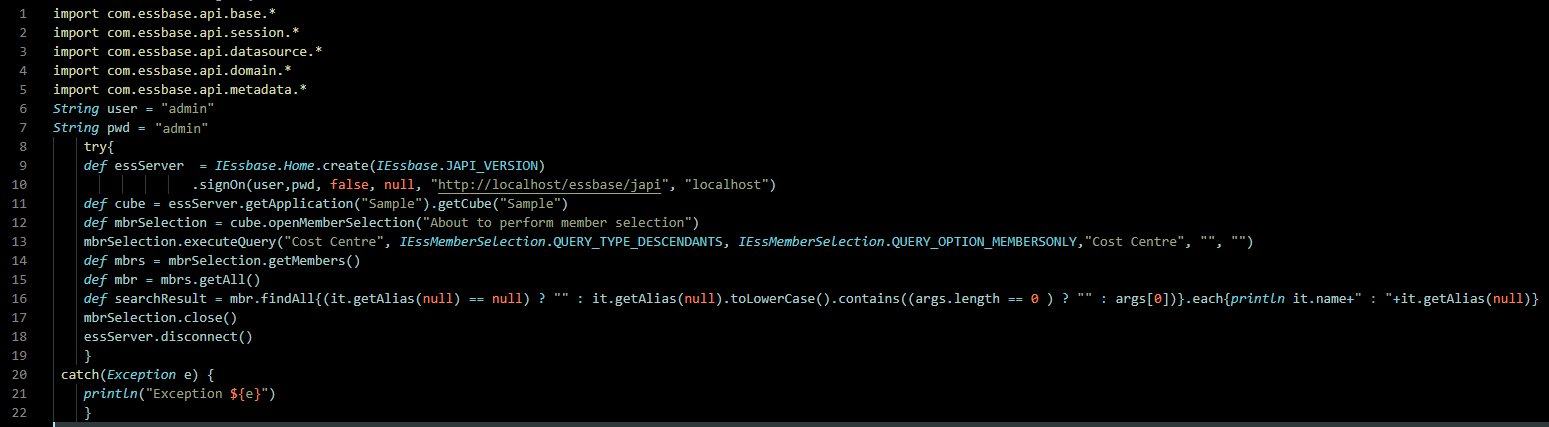
First, I'm defining an Essbase connection and a cube to connect to

def essServer  = IEssbase.Home.create(IEssbase.JAPI_VERSION

                  .signOn(user,pwd, false, null, "http://localhost/essbase/japi", "localhost")


def cube = essServer.getApplication("Sample").getCube("Sample"))

Define a member selection query on Cost Centre dimension and get all members.

def mbrSelection = cube.openMemberSelection("About to perform member selection"

    mbrSelection.executeQuery("Cost Centre", IEssMemberSelection.QUERY_TYPE_DESCENDANTS, IEssMemberSelection.QUERY_OPTION_MEMBERSONLY,"Cost Centre", "", ""))

Get the members returned from the query, find all members with aliases that match the passed argument and print them all.

def mbrs = mbrSelection.getMembers()

def mbr = mbrs.getAll()

def searchResult = mbr.findAll{(it.getAlias(null) == null) ? "" : it.getAlias(null).toLowerCase().contains((args.length == 0 ) ? "" : args[0])}.each{println it.name+" : "+it.getAlias(null)})


Now I just have create a .groovy file in the same working directory and save the script.

To run the script, I just need to run it and pass the alias I want to search for.

For example, search for all cost centres with aliases that contain "ope".

groovy helloEssbaseCloud.groovy "ope"


As you can see, the script works without any issues. You can now use Groovy to work with Essbase Cloud APIs instead of Java.

Groovy and Essbase Cloud APIs - Part 2

 In my previous blog, I showed you how to install Groovy on Linux using SDKMAN.

The second step is to create a working directory to put all of Essbase API files and groovy scripts in one place. By default, you need oracle user to access the API files, so I’m going to copy them into a directory under opc user which I’m going to use to run my Groovy scripts.

The API files are located under /u01/oracle/essbase/common/EssbaseJavaAPI/*

I’m going to need three jar files

1.      ess_japi.jar

2.      ess_es_server,jar

3.      ojdl.jar

To copy the files, I will run the following commands:

sudo cp /u01/oracle/essbase/common/EssbaseJavaAPI/lib/ess_japi.jar /home/opc/EssbaseJAPI/ess_japi.jar

sudo cp  /u01/oracle/essbase/common/EssbaseJavaAPI/lib/ess_es_server.jar /home/opc/EssbaseJAPI/ess_es_server.jar

sudo cp  /u01/oracle/essbase/common/Essbase/jlib/ojdl.jar  /home/opc/EssbaseJAPI/ojdl.jar

 The next step is to define CLASSPATH variable.

export CLASSPATH=”/home/opc/EssbaseJAPI/ess_japi.jar: /home/opc/EssbaseJAPI/ess_es_server.jar: /home/opc/EssbaseJAPI/ojdl.jar”


 Create a Groovy Script

The final step is to create the Groovy script, run the script and test it but first I need a use case.

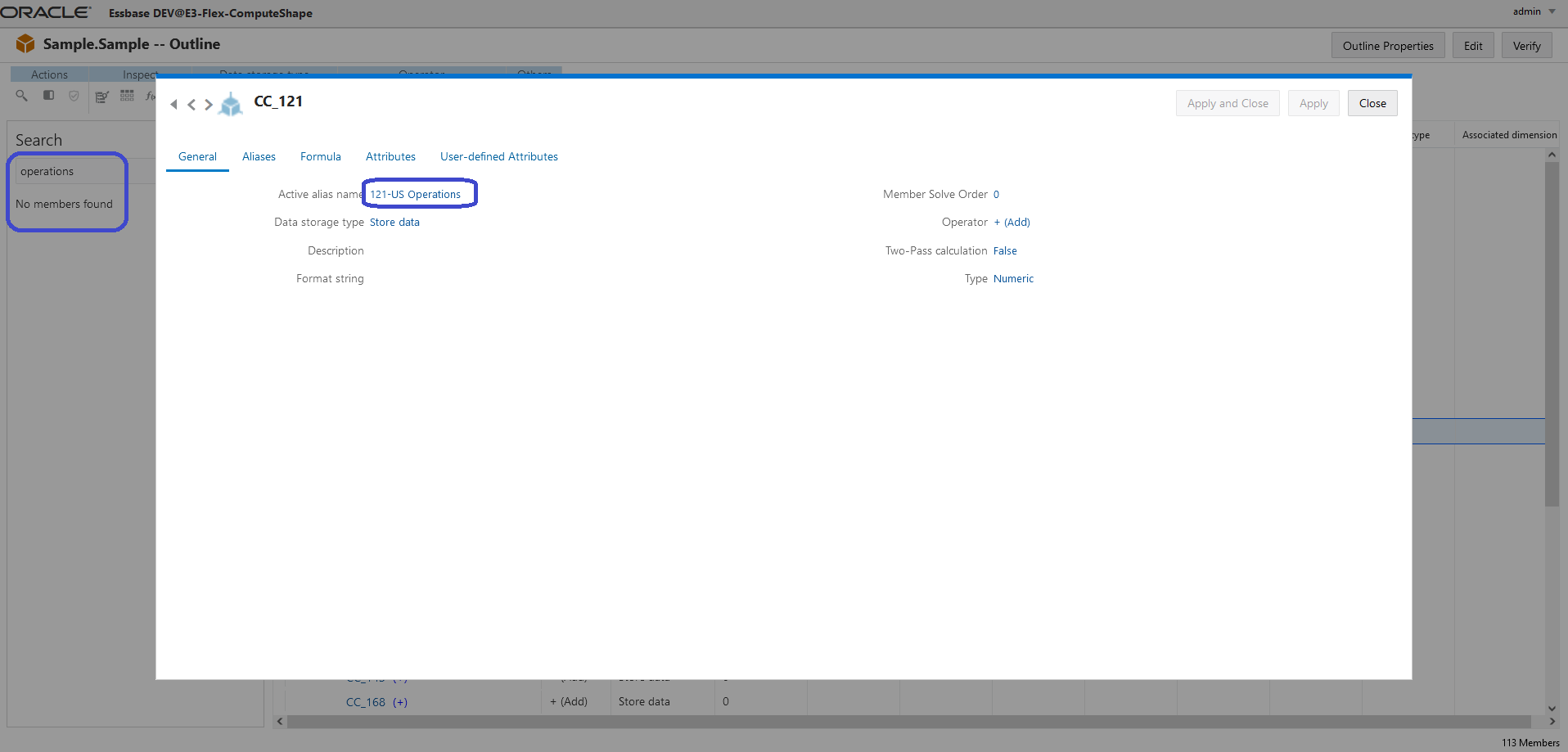
I want to search the Sample application outline for members based on alias descriptions, not member names. The standard outline search feature available via the simplified interface is not going to do the job for me as shown next:


So, I’m going to write a simple Groovy script to search the outline based on member aliases. Here is the code:

I've intentionally used "def" to define untyped variables just to highlight the Groovy nature of the code, I personally like to declare the data type for better readability. For example, instead of "def cube" I would type "IEssCube cube


In my next post, I will explain the code and show you how to run it.


Thanks

Groovy and Essbase Cloud APIs - Part 1

 This post is a quick tip about using Groovy to work with Essbase Cloud Java APIs for those who prefer to code in Groovy instead of Java for whatever reason (in my case I just prefer the simplified Groovy syntax). Everything I’m about to demonstrate here applies to any Java API, be it Essbase on-premise or OCI etc.

For this demo purposes, I will be using OCI marketplace Essbase 21c deployment.

Install Groovy

The first step is to set up Groovy on the Essbase instance, there are many ways you can install Groovy but I prefer the Software Development Kit Manager (SDKMAN). To install using SDKMAN do the following:
  1. Login to Essbase instance using opc user via SSH (using PuTTy, VSCode, PS etc)
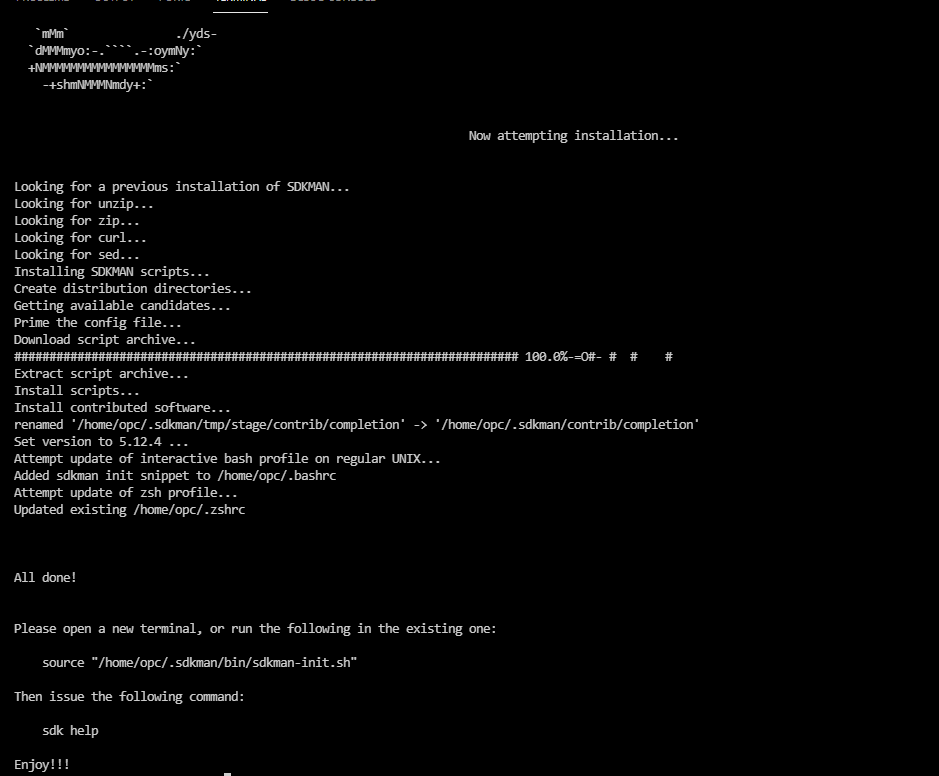
  2. Initialise and prepare the environment by typing


Finally, install Groovy


Groovy is now installed and GROOVY_HOME is set.


In the second part we will configure Essbase working directory and show how to use Groovy with Essbase Java APIs.